
Klaviyo#
With ESP apps clients can synchronize emails that Talkable acquires with their ESP. Here are the conditions when Talkable acquires emails:
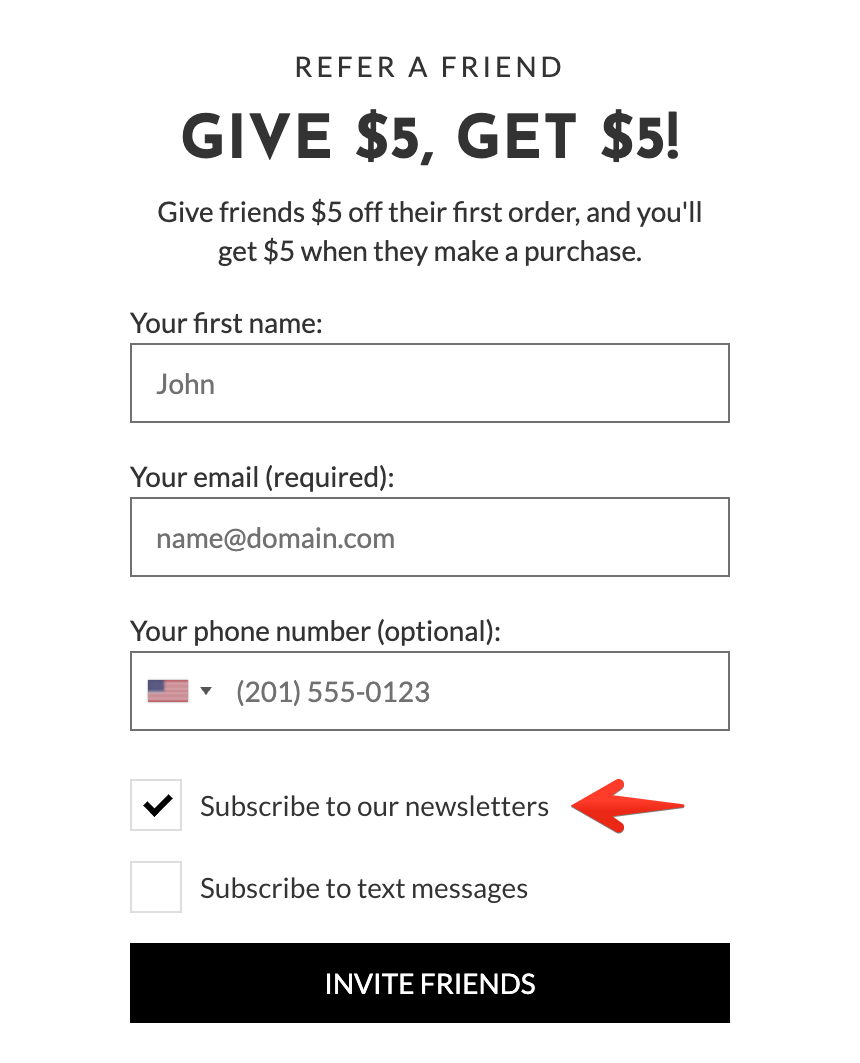
Advocate signs up and opts in for Talkable marketing emails:
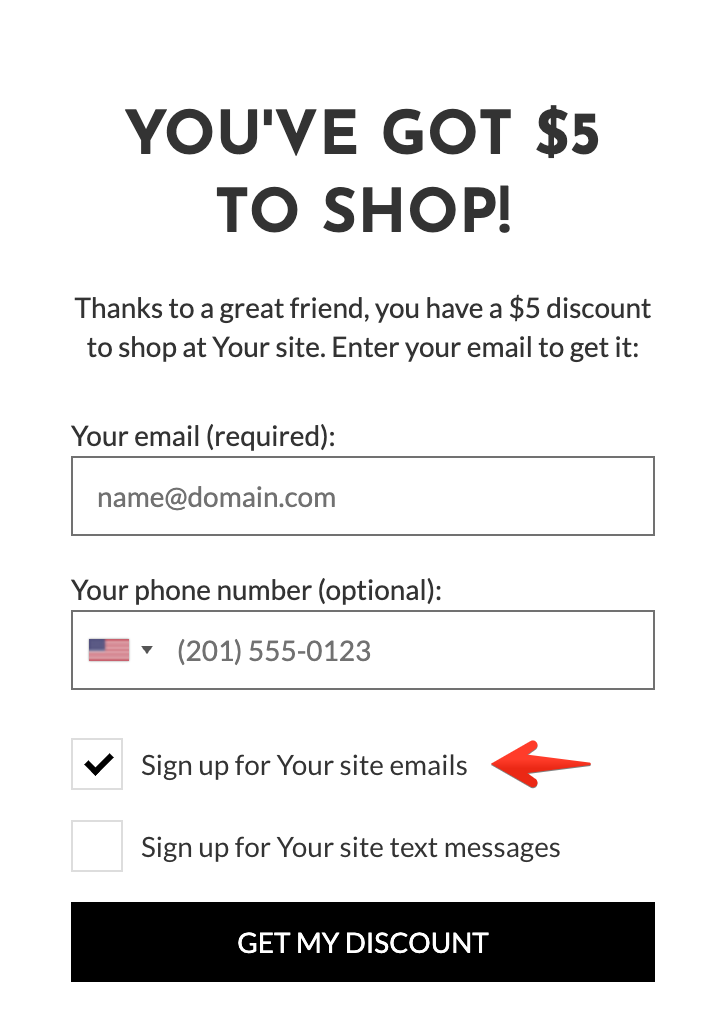
A friend passes email gating and opts in for Talkable marketing emails:
Each ESP application allows custom attributes to be included with each request. The following interpolation variables are allowed:
{{ person }}- a data object for either advocate or friend whenever they sign up or pass email gating and opt-in for marketing emails.{{ ip }}– a data object from which IP address either a signup or email gating occurred.{{ campaign }}– a data object with details about the campaign within which the email was captured.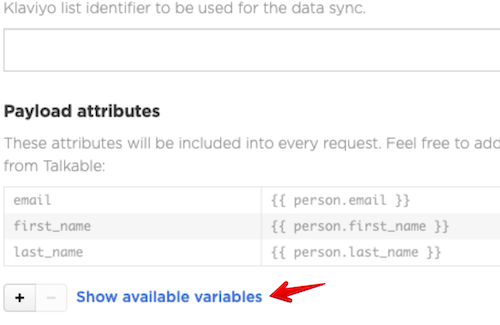
Each variable is described in the “Available variables” sidebar and can be expanded to see all nested properties.
How to add a new app?#
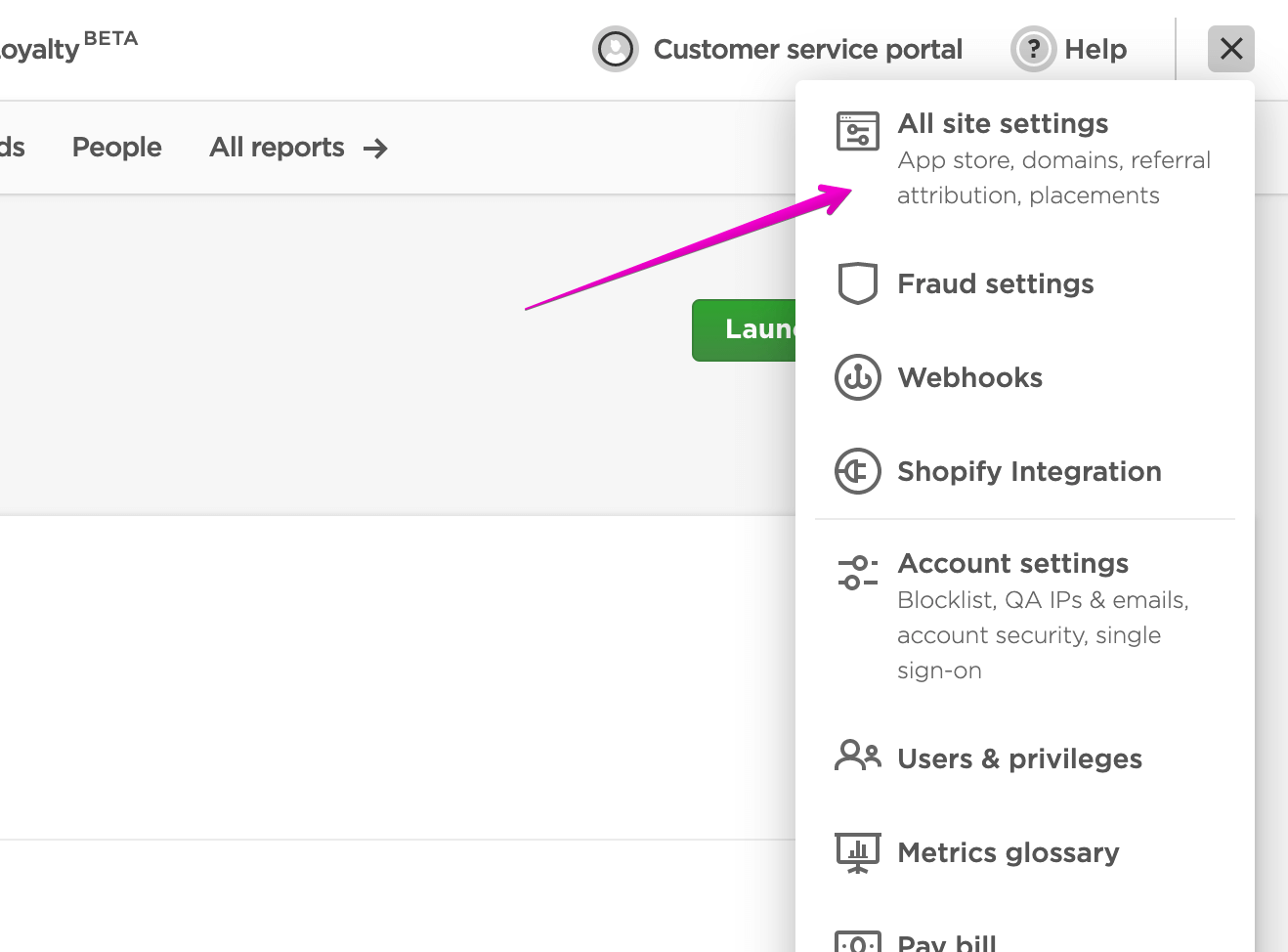
Please use the following guide to start using an app you need:
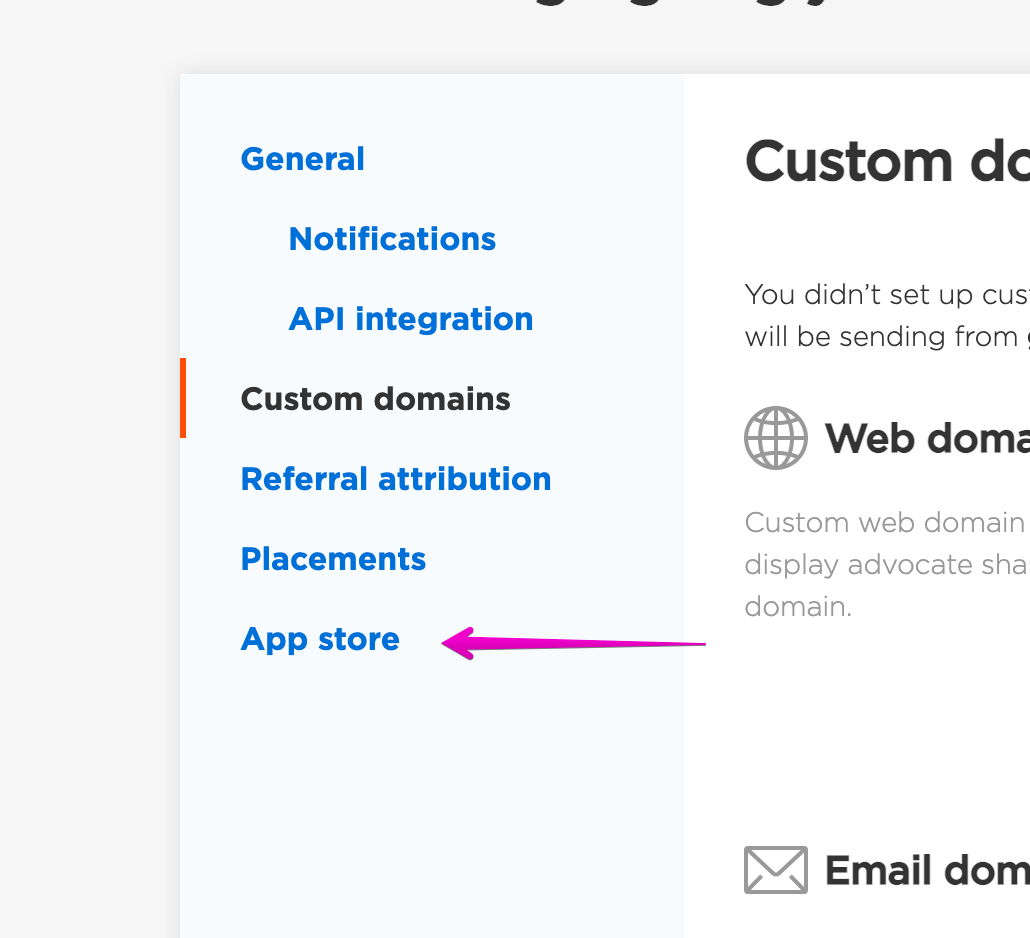
Navigate into the App store:
Choose an app you need by clicking “Install”
Confirm the app installation in Klaviyo
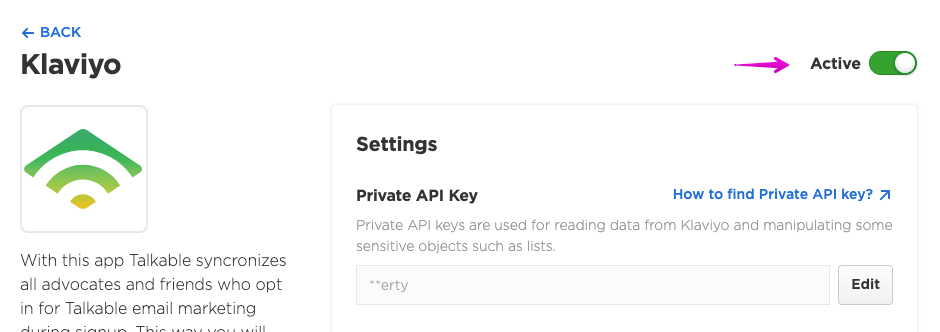
Complete installation in Talkable and enable the app:
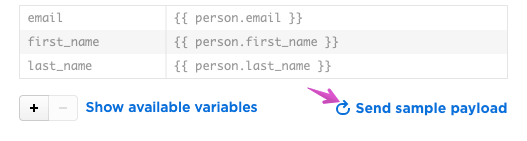
Test the app by pressing on the “Send sample payload” and then check if you are seeing a test request inside your ESP:
Talkable profile properties#
Every time a Talkable event reaches Klaviyo, Talkable adds extra information about the person to their Klaviyo profile — things like how many friends they’ve referred, whether they’ve shared an offer, and which campaign brought them in. This happens automatically, on top of the standard fields (email, first name, phone, etc.) you see under Payload attributes in each action.
You can use these properties in Klaviyo to build segments, trigger flows, and personalize emails — for example, send a thank-you email to advocates with three or more approved referrals, or greet a referred customer with a “your friend just signed up” message.
Which profiles get updated, by action:
Sync email opt-ins / Sync phone opt-ins — the person who just opted in.
Track offer shares — the advocate who shared their offer.
Track referral approvals — both the friend (the new customer) and the advocate who referred them. The friend’s profile gets the advocate’s email saved on
talkable_referred_by_email, which is how the Talkable Referred Customers segment finds them.Track reward issued — the person receiving the reward.
Sync loyalty actions / Sync loyalty tier transitions — the loyalty member.
Property |
Value |
What it means |
|---|---|---|
|
true / false |
Whether this person has received at least one Talkable referral offer (i.e. has ever been an advocate). |
|
Number |
Total number of friends this person has referred, regardless of status. |
|
Number |
Number of this person’s referrals that have been approved (rewards earned). |
|
Number |
Number of this person’s referrals still awaiting approval. |
|
Number |
How many times this person has shared their offer across all channels (email, SMS, Facebook, copy link, etc.). |
|
The advocate’s email — set only on friends who came in through a referral. |
|
|
Text |
The advocate’s first name — set only on friends who came in through a referral. |
|
Text |
The advocate’s last name — set only on friends who came in through a referral. |
|
Date |
Date of the most recent Talkable referral offer this person received. |
|
true / false |
Whether this person is enrolled in your Talkable loyalty program. |
|
Text |
Name of the Talkable campaign that drove the current event. |
|
List of tags |
Tags assigned to the Talkable campaign that drove the current event. |
If a property doesn’t apply to someone (for example, talkable_referred_by_email for a person who signed up directly),
it’s simply left off — Klaviyo will treat it as “not set” in segment conditions.
Segments#
When the Klaviyo app is installed, Talkable creates a set of starter segments built on top of the profile properties above. You can find them in Klaviyo under Audience → Lists & Segments.
Segment creation requires the segments:read and segments:write OAuth scopes. Klaviyo
includes them in the consent screen when you install the app, and its consent is all-or-nothing —
you can’t approve some scopes and decline others — so a fresh install grants these automatically.
If your installation predates Talkable’s segments feature and you haven’t reauthorized the app since, the stored grant won’t include the segment scopes and Talkable will quietly skip segment creation. Reinstall the app from the Talkable App Store (look for the Reinstall badge) to pick up the new scopes; the segments will be created right after that to preserve the app activation status.
The segment-creation step runs on each app activation — fresh install, reinstall, or toggling the app off and back on. On every run, Talkable looks up Klaviyo segments by their original Talkable names:
If a matching name exists, Talkable leaves the segment untouched — editing the conditions of a Talkable segment is safe; your edits won’t be overwritten.
If a matching name is missing, Talkable creates a fresh segment with that name and the default conditions. Renaming a Talkable segment causes Talkable to recreate the original on the next activation (your renamed copy stays alongside it); deleting one means it reappears on the next activation.
To customize a Talkable segment safely, edit its conditions in place rather than renaming or deleting it. If you need a meaningfully different segment, build it as a separate segment in Klaviyo.
Segment |
Conditions (joined with AND) |
|---|---|
Talkable Opted In Never Shared |
|
Talkable High-Value Advocates |
|
Talkable Referred Customers |
|
Talkable Lapsed Advocates |
|
Metrics#
Talkable fires Klaviyo metric events for the most important moments in a referral lifecycle. Each event becomes a trigger you can use to start a Klaviyo Flow — welcome series, thank-you emails, reward notifications, and so on.
The following metric events are sent when the corresponding action is enabled:
Metric name |
Triggered by |
Profile that receives the event |
|---|---|---|
Talkable Email Opted In |
Sync email opt-ins |
The opted-in person |
Talkable Phone Opted In |
Sync phone opt-ins |
The opted-in person |
Talkable Offer Shared |
Track offer shares in Klaviyo |
The advocate who shared |
Talkable Referral Approved |
Track referral approvals in Klaviyo |
The advocate (the friend’s profile is updated separately so the Talkable Referred Customers segment picks them up) |
Talkable Reward Issued |
Track reward issued in Klaviyo |
The reward recipient |
The Sync loyalty actions and Sync loyalty tier transitions actions also generate metric
events. Their metric names come from the metric_name payload attribute
(defaults: loyalty_action_performed and loyalty_tier_transitioned), so you can rename them
or split them across multiple metrics by editing the payload.
Metric event properties#
Every metric event carries two layers of data:
Profile properties — all the
talkable_*properties listed in Talkable profile properties above are attached to the recipient’s profile alongside the event. Use them as Flow filters or reference them in the email body as{{ person.talkable_referral_count_approved }}.Event properties — whatever you’ve configured in the action’s Payload attributes panel (minus
emailandmetric_name, which Klaviyo handles specially) ends up here. By default the track-* actions send only the recipient’s email, so the event properties bag is empty until you add custom attributes.
Viewing and filtering metrics in Analytics#
Open Analytics → Metrics in Klaviyo and pick any Talkable metric (for example, Talkable Referral Approved) to see an over-time chart of event volume. From the chart’s controls you can:
Filter (Where) — restrict the chart to events whose property matches a specific value (for example, only events where
campaign_nameequals"Holiday 2025").Group by (By) — break the chart into one line per property value (for example, group Talkable Offer Shared by
channelto compare email, SMS, and Facebook shares side by side).
Any custom attribute you add to the action’s payload becomes available as a filter/group-by option on its metric. For richer analysis, build a Custom Report under Analytics → Custom Reports — single-metric Deep Dive reports support property filters and grouping, while multi-metric reports do not (each metric has its own property schema).
Using event properties in email bodies#
In a Flow triggered by a Talkable metric, event properties are available in the email template as
{{ event.<property_name> }} — for example, {{ event.first_name }} or
{{ event.custom_source }}.
Tags are case-sensitive and must match the exact key you set on the payload. The easiest way to get the right tag is to open the email’s Preview pane in Klaviyo, find the property in the event preview, and click it — Klaviyo copies the exact tag to your clipboard.
For property names containing spaces or punctuation (for example Accepts Marketing), use
Klaviyo’s lookup filter — see the
Klaviyo personalization reference.
To keep templates simple, prefer snake_case keys for any custom payload attributes you add.
Event properties can only be used in metric-triggered Flow emails. They are not available in campaigns or in Flows triggered by list membership or by profile-property changes — for those, rely on the profile-properties layer instead.
Customizing the payload#
Each action has a Payload attributes panel where you can add custom key/value pairs. Values
support Liquid templating against the action’s context — the Available variables sidebar shows
what’s accessible (for example, {{ person }} on opt-in actions, {{ sharer }} on offer
shares, {{ advocate_person }} on referral approvals).
Where those attributes land in Klaviyo depends on the action type:
Opt-in actions (Sync email opt-ins, Sync phone opt-ins) — the payload feeds two places at once:
The person’s Klaviyo profile is created or updated with these attributes. Keys that match standard Klaviyo profile fields (
email,phone_number,external_id,first_name,last_name,organization,title,image,location) are mapped to those built-in fields; any other key becomes a custom profile property on the person.The same attributes are attached to the metric event as event properties, so they’re available in Flow emails as
{{ event.<key> }}.
Track actions (Track offer shares in Klaviyo, Track referral approvals in Klaviyo, Track reward issued in Klaviyo) — the payload feeds only the metric event as event properties. The recipient’s profile is not updated from this payload (Talkable still attaches the
talkable_*profile properties to the event alongside it). Use these actions to enrich Flow emails with reward, share, or referral details that are specific to one event and don’t need to live on the profile permanently.Loyalty actions (Sync loyalty actions, Sync loyalty tier transitions) — the payload feeds the metric event as event properties. The
metric_namekey in the payload controls the name of the Klaviyo metric itself; override it to route different loyalty events to different metrics (and different Flows).
A few rules of thumb when designing custom payloads:
Avoid the talkable_ prefix for your own keys. Names starting with
talkable_are managed automatically by Talkable and will be overwritten on the next event.Prefer snake_case keys — they’re easier to reference in email templates as
{{ event.order_total }}thanOrder Totalis via thelookupfilter.Empty Liquid renders drop the key. If a variable can’t be resolved for a given event (for example,
{{ purchase.subtotal }}on an opt-in that wasn’t tied to a purchase), Talkable omits the attribute from the request rather than sending an empty string — so your Klaviyo profile and metric event stay free of blank values.
Contact us
Interested in setting this up? Contact your CSM or get in touch here.