
App Store#
The App Store connects your Talkable site to external tools. Open Site Settings → App Store to view installed apps and available apps. Each installation belongs to one Talkable site and has its own settings.
Capabilities#
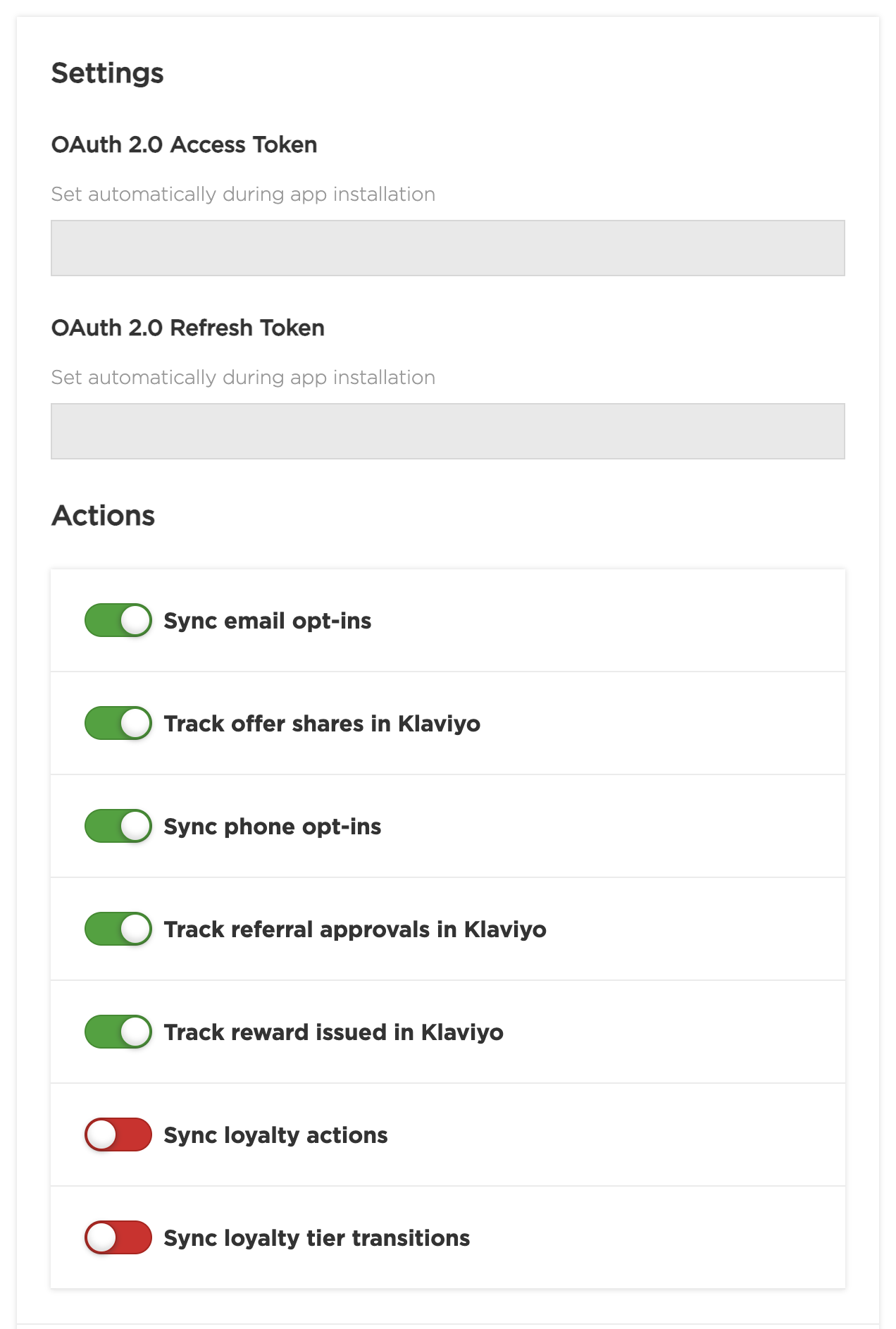
An app contains actions for tasks such as syncing opt-ins or sending reward events. The available actions depend on the app. See Events and actions for the events and data you can use.
For an outbound action, Talkable sends data to the connected tool when its event occurs. Campaign emails remain in Talkable, except for Custom App’s wallet-install action, which replaces the wallet welcome email. Some apps also have inbound data-sync actions with their own settings.
Apps connect through OAuth sign-in and consent, or through settings you enter in Talkable, such as an API key or an endpoint URL. Both the app and the action must be enabled for automatic event delivery. Enabling an action while its app is disabled lets you configure and test it without starting automatic sending. Any trigger criteria must also match the event.
You can choose the data each action sends with Payload attributes and variables. Some apps support multiple connections on the same Talkable site. Use App connections and event routing to connect separate accounts, route events by market, or use different tools for email and SMS.
Installing and managing apps#
You need write access to the Talkable site to install and configure apps. Install an app separately on each site that should send data.
Install an app#
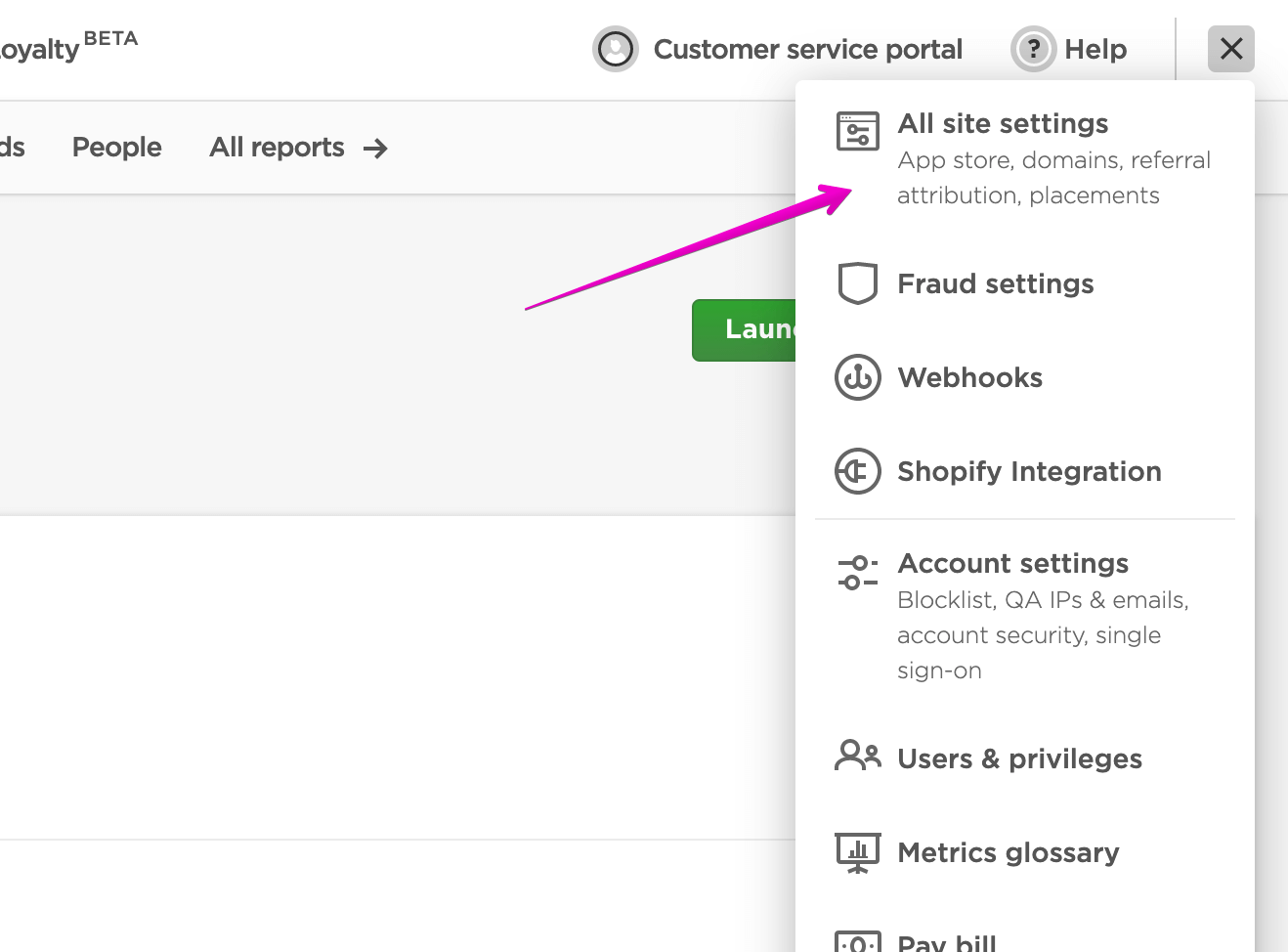
Open Site Settings → App Store on the Talkable site you want to connect.
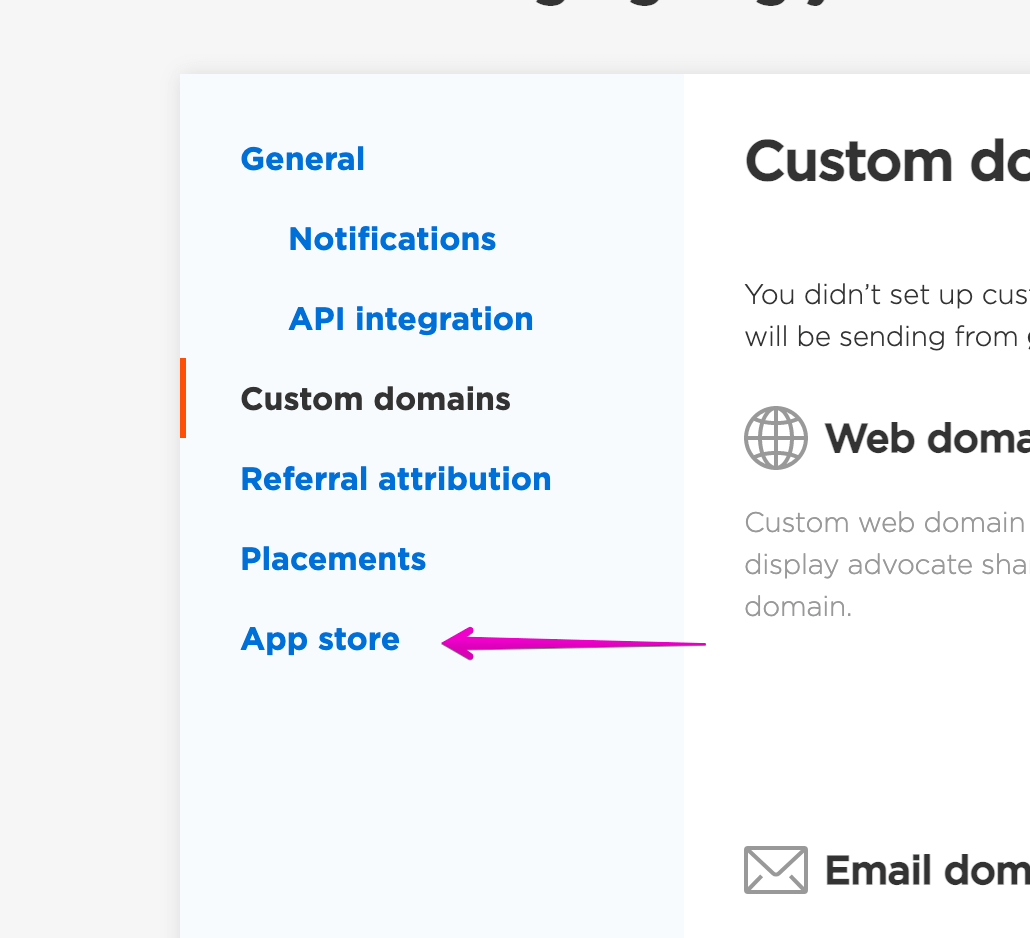
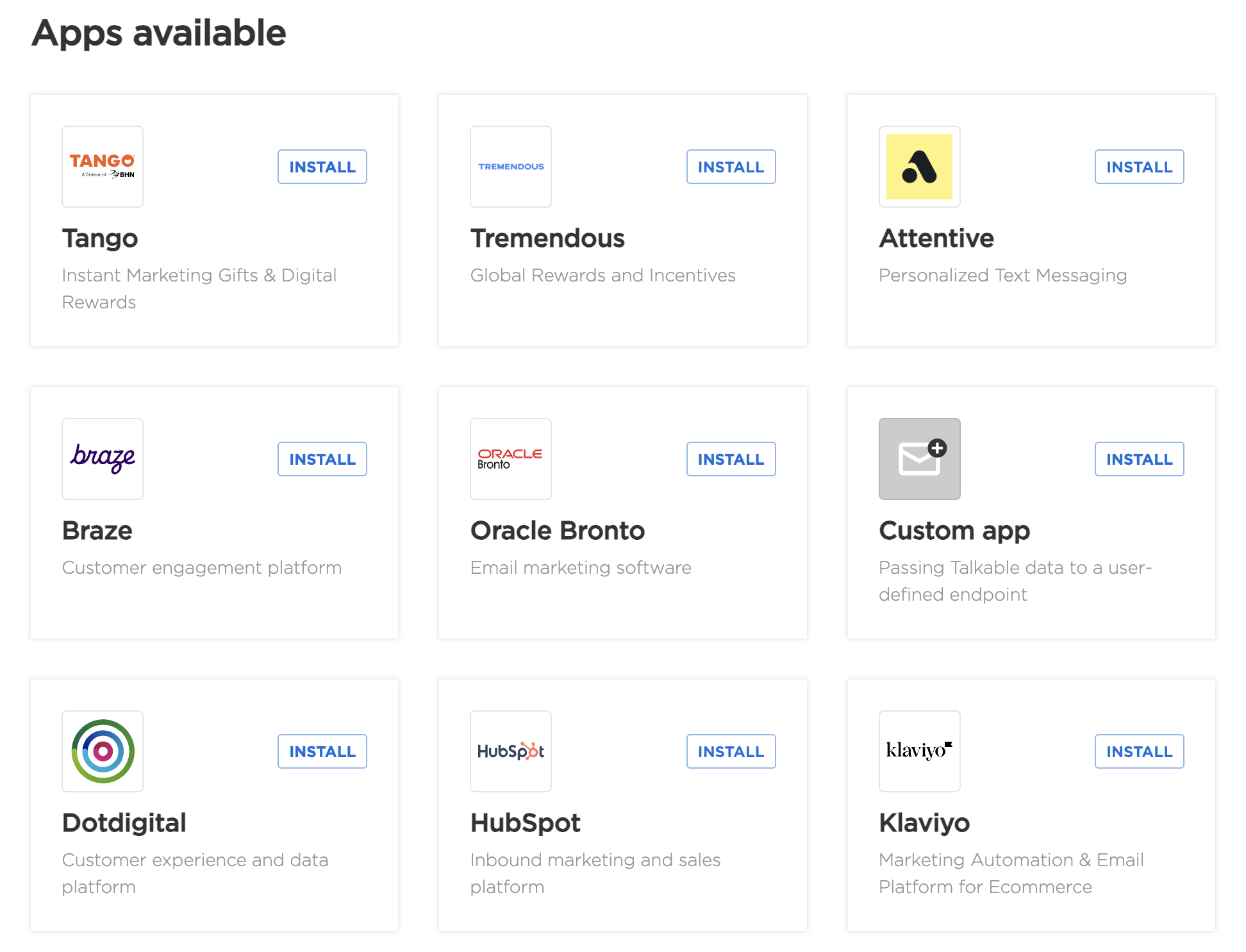
Find the app under Apps available and click Install.
Complete the connection:
For OAuth apps, sign in to the external tool and approve the requested access. Some tools ask which account to connect; others use the account you are signed in to. Check that the destination account is correct before approving. Talkable stores the credentials automatically.
For apps with manual settings, enter the requested API key, endpoint URL, or other values. Follow the instructions beside each field. If the form has Show next step, use it to configure actions, then click Complete installation.
After installation, Talkable opens the installed app’s page. Keep the app disabled while setting up its actions.
Turn on the actions you want to configure. This reveals their settings. Complete required fields, then configure any payload attributes and trigger criteria. Click Save changes.
For actions with Send sample payload, send a sample and check the result in the connected tool. Keep the app disabled during this check.
When the settings and samples are correct, save any remaining changes and enable the app to start automatic sending for its enabled actions. If you use routing rules, also verify them with test events before enabling the production connection.
Enable or disable an app or action#
The app switch controls automatic sending for the whole connection. It is available when at least one action is enabled and there are no unsaved changes; changing this switch takes effect immediately. Each action has its own switch. Click Save changes after changing action switches or settings.
An enabled action sends automatic events only when the app is also enabled. Disable an action and save to stop that event type, or disable the app to stop automatic sending for all its actions. Disabling an action also hides its settings and sample button. To test a sample, leave the action enabled and saved while keeping the app disabled. See Testing a connection.
Reinstall an OAuth app#
When an installed OAuth app shows Update permissions or a message that additional permissions are required, click Reinstall. Check the destination account and approve the requested access. Reinstall updates the credentials and permissions for the existing installation; it does not create another connection.
The control appears when permissions are missing. Removing access in the external tool does not by itself make Reinstall appear in Talkable.
Uninstall an app#
Open the installed app and use its uninstall control to remove the connection from the Talkable site. To stop automatic sending while keeping the settings, disable the app instead.
Testing a connection#
For an action that offers Send sample payload:
Keep the app disabled.
Enable the action, configure it, and click Save changes. The sample button appears after the action is saved. It is disabled while any changes on the app page are unsaved.
Click Send sample payload and review the result. Confirm that the connected tool received the expected sample data. If the request fails, correct the settings or payload, save, and try again.
Enable the app only when you are ready for automatic event delivery.
A sample sends a real request with sample data. It can create a subscriber or event and start the connected tool’s flows. Use a test account when those side effects are not wanted.
A successful sample checks the connection and sample payload. It ignores trigger criteria and does not prove that routing works. Follow Verify routing to check which account receives each test event. Data-sync actions that do not send outbound payloads do not offer this sample test.
Learn more#
Understand action triggers and the variables available for each event |
|
Choose the fields each action sends and use the variables available for its event |
|
Filter events with Liquid rules on individual actions |
|
Route events to market accounts, separate email and SMS tools, and test connections |