
Getting Started#
Connecting an agent takes two things: the MCP endpoint URL and a credential.
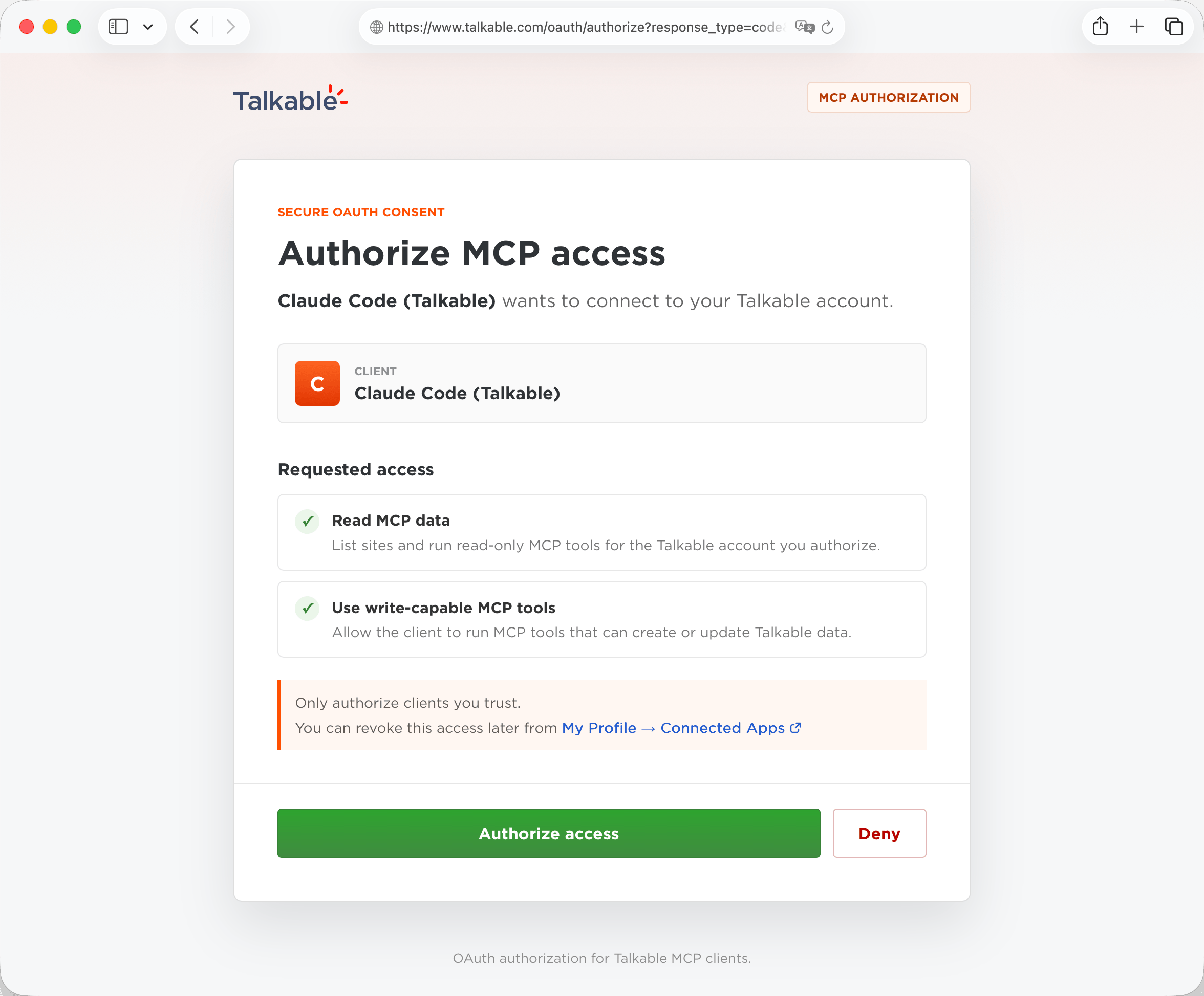
You can find both, plus copy-paste client configuration, in the Talkable dashboard under My Profile → API Keys.
Note
MCP and the AI Assistant are enabled per site by your Customer Success Manager. Capabilities marked Early access on the Talkable AI pages are enabled per site as well; ask your CSM to join.
The endpoint#
The MCP endpoint is served over streamable HTTP at:
https://www.talkable.com/mcp
The exact URL for your environment is shown in the Connect an MCP client panel on the API Keys page.
Choosing a credential#
You can authenticate with OAuth or with an API key. API keys come in two kinds — a personal key tied to your user, or a scoped key an admin creates for a site or the whole account — so pick the one that matches who (or what) the agent runs as.
OAuth (recommended for interactive clients)#
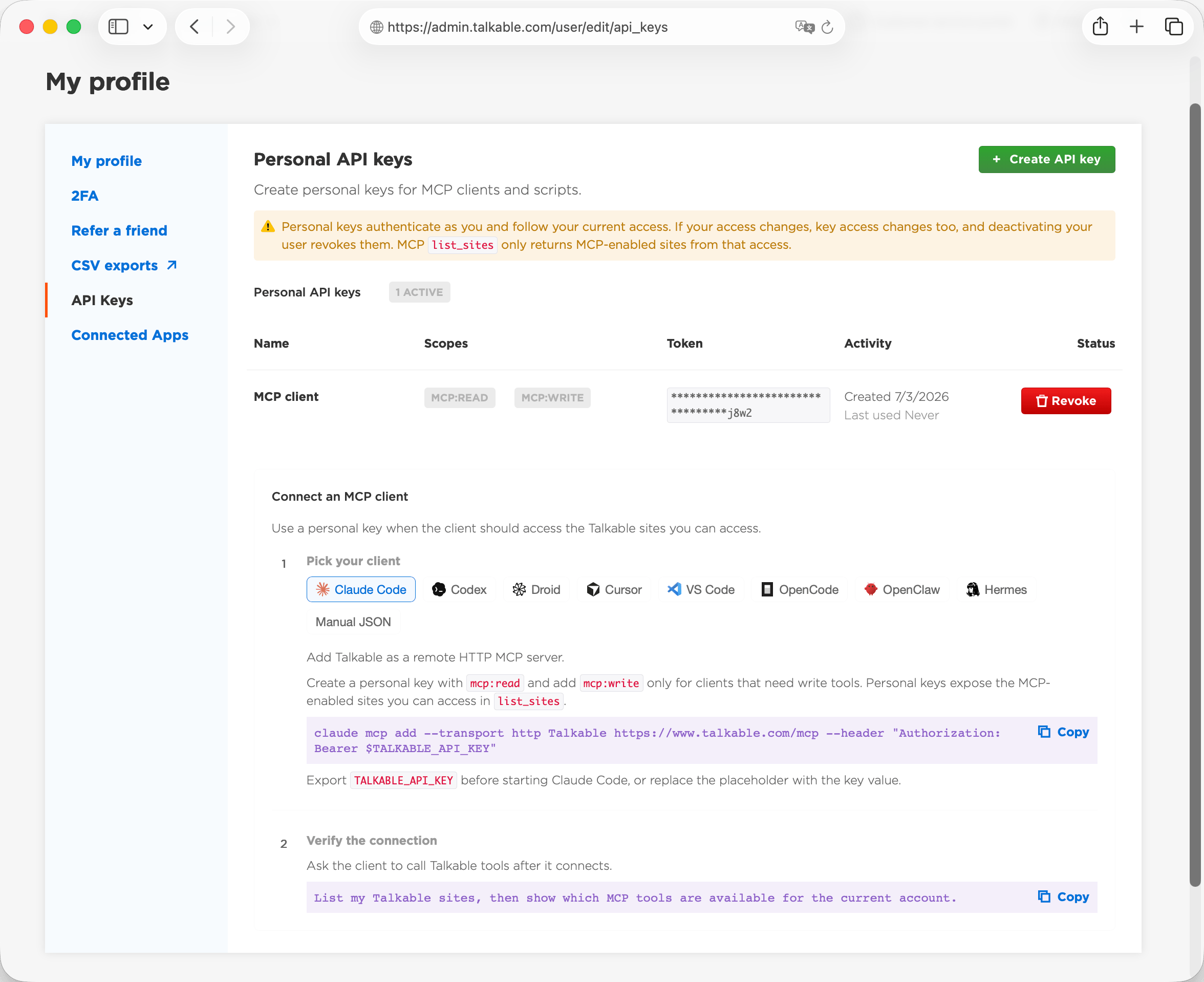
Clients such as ChatGPT, Claude Code, Cursor, Claude, Codex, VS Code, Gemini, and Grok support OAuth. They discover the Talkable authorization server automatically, register themselves, and open a consent screen where you sign in and approve the connection. You never copy a secret by hand, and you can revoke the agent at any time (see permissions).
Claude Code#
claude mcp add --transport http Talkable https://www.talkable.com/mcp
The first time the client connects, it opens the Talkable consent screen in your browser. Sign in with your Talkable account and approve the requested scopes. Then try: “List my Talkable sites.”
Cursor#
Add the server to Cursor’s MCP configuration (~/.cursor/mcp.json for all projects, or
.cursor/mcp.json in a project):
{
  "mcpServers": {
    "Talkable": {
      "type": "http",
      "url": "https://www.talkable.com/mcp"
    }
  }
}
Cursor opens the Talkable consent screen on first use.
VS Code#
Add the server to .vscode/mcp.json in your workspace:
{
  "servers": {
    "Talkable": {
      "type": "http",
      "url": "https://www.talkable.com/mcp"
    }
  }
}
Codex#
codex mcp add Talkable --url https://www.talkable.com/mcp
Other MCP clients#
Other clients connect the same way — point them at the endpoint below and choose OAuth, or pass an API key as a Bearer token where the client asks for a header. This includes ChatGPT (developer mode), Claude (custom connector), Gemini (the Gemini CLI for work accounts), OpenClaw, Hermes Agent, Grok, and Perplexity. For a self-hosted or messaging-connected agent, use a read-only credential unless the agent needs to change data. When a client asks for connection details, use:
URL |
|
Authentication |
OAuth 2.1 with PKCE (Dynamic Client Registration supported) |
Transport |
Streamable HTTP |
Clients configured through a JSON file use the same settings:
{
  "mcpServers": {
    "Talkable": {
      "type": "http",
      "url": "https://www.talkable.com/mcp"
    }
  }
}
Personal API key (tied to your user)#
For clients or scripts that cannot run an interactive OAuth flow, create a personal API key:
Go to My Profile → API Keys.
Click Create API key, give it a name, and select the scopes you need (
mcp:read, andmcp:writeonly if the client needs write tools).Copy the key — it is shown only once.
Then pass it as a Bearer token:
claude mcp add --transport http Talkable https://www.talkable.com/mcp \
  --header "Authorization: Bearer $TALKABLE_API_KEY"
{
  "mcpServers": {
    "Talkable": {
      "type": "http",
      "url": "https://www.talkable.com/mcp",
      "headers": { "Authorization": "Bearer YOUR_TALKABLE_API_KEY" }
    }
  }
}
A personal key authenticates as you and follows your current access. If your access changes, the key’s access changes with it; deactivating your user revokes the key. For an agent that shouldn’t be tied to one person — a shared bot, a background service, or CI — use a scoped key instead.
Scoped account or site key#
Scoped keys are made for integrations: a named, non-expiring key with mcp:read or
mcp:write, for one site or the whole account, that keeps working as people come and go and
can be revoked in one click.
When the agent shouldn’t run as a specific person, an admin can create a scoped API key that belongs to a site or the whole account instead of a user. It keeps working as people come and go, and its reach is fixed by the key rather than by anyone’s role.
An admin opens Account settings → API Keys & MCP.
Click Create API key, choose Current site only or Whole account, name it, and select the
mcp:read/mcp:writescopes.Copy the key — shown only once — and pass it as a Bearer token exactly like a personal key.
A whole-account key reaches every site in the account; a site key reaches one. Whole-account keys can be created only by staff or an account admin; a site admin can create keys for their own site. Revoke them from the same page (see permissions).
Note
Connecting more than one account. A single connection already spans every site your credential can reach,
so list_sites shows them all and you pick a site per call. If you need to connect distinct Talkable accounts
(for example, separate logins), add one MCP server entry per account under different names
(Talkable-BrandA, Talkable-BrandB) in your client config, each with its own credential.
Verify the connection#
Once connected, ask the agent to exercise Talkable:
List my Talkable sites.
Show conversion metrics for the last 30 days for <site>.
The agent calls list_sites (returning only the sites you can access), and its available tools are already filtered to
your role and scopes. Every subsequent tool call takes a site_slug from list_sites to choose which site to act on.
Troubleshooting#
The client won’t authenticate. Interactive clients use OAuth 2.1 with PKCE; make sure your client supports it (most
modern MCP clients do) and complete the browser consent step. For header-based auth, check that the token is passed as
Authorization: Bearer <token> and that the key has not been revoked.
The connection drops after a while. OAuth access tokens expire. A compliant client refreshes them automatically; if yours doesn’t, reconnect to start a new OAuth flow. A personal API key does not expire but stops working if it is revoked or your user is deactivated.
No tools show up, or fewer than expected. The tools you see depend on your credential’s scopes and your role.
A mcp:read-only key never shows write tools, and tools your role can’t use on any of your sites are omitted from
the tool list (see permissions). Grant mcp:write if the client needs write tools.
“Access denied: this action requires … on this site.” Your role on that site doesn’t permit the tool. This mirrors the dashboard — use a credential whose user has the needed role, or perform the action in the dashboard.
“Site not found or not accessible.” The site_slug isn’t one your credential can reach. Call list_sites to
see valid slugs; a slug from another account is never accessible.
“MCP is disabled for this site…”, “Public AI access … is not yet enabled for this site…”, or “AI Assistant is disabled for this site.” MCP, the AI Assistant, and early-access capabilities are enabled per site; see getting access and ask your Customer Success Manager.
HTTP 429 (too many requests). The endpoint is rate limited. Back off and retry after a short delay; well-behaved clients do this automatically.
Next steps#
authentication & scopes — scopes and how credentials work.
permissions — what each role can do, tenant isolation, and how to revoke access.