
Attentive#
The Attentive app is available in the Talkable App Store. Install it with OAuth to send sign-ups, phone opt-ins, and coupon reward events to your Attentive account.
You can connect one Talkable site to multiple Attentive accounts. If your regions use separate accounts, see Connect multiple Attentive accounts to send each region’s events to its account.
Connect Attentive#
You need write access to the Talkable site and access to the Attentive account that should receive its data. Have that account’s Sign-up Source ID ready for the subscription actions.
Open Site Settings → App Store in Talkable.
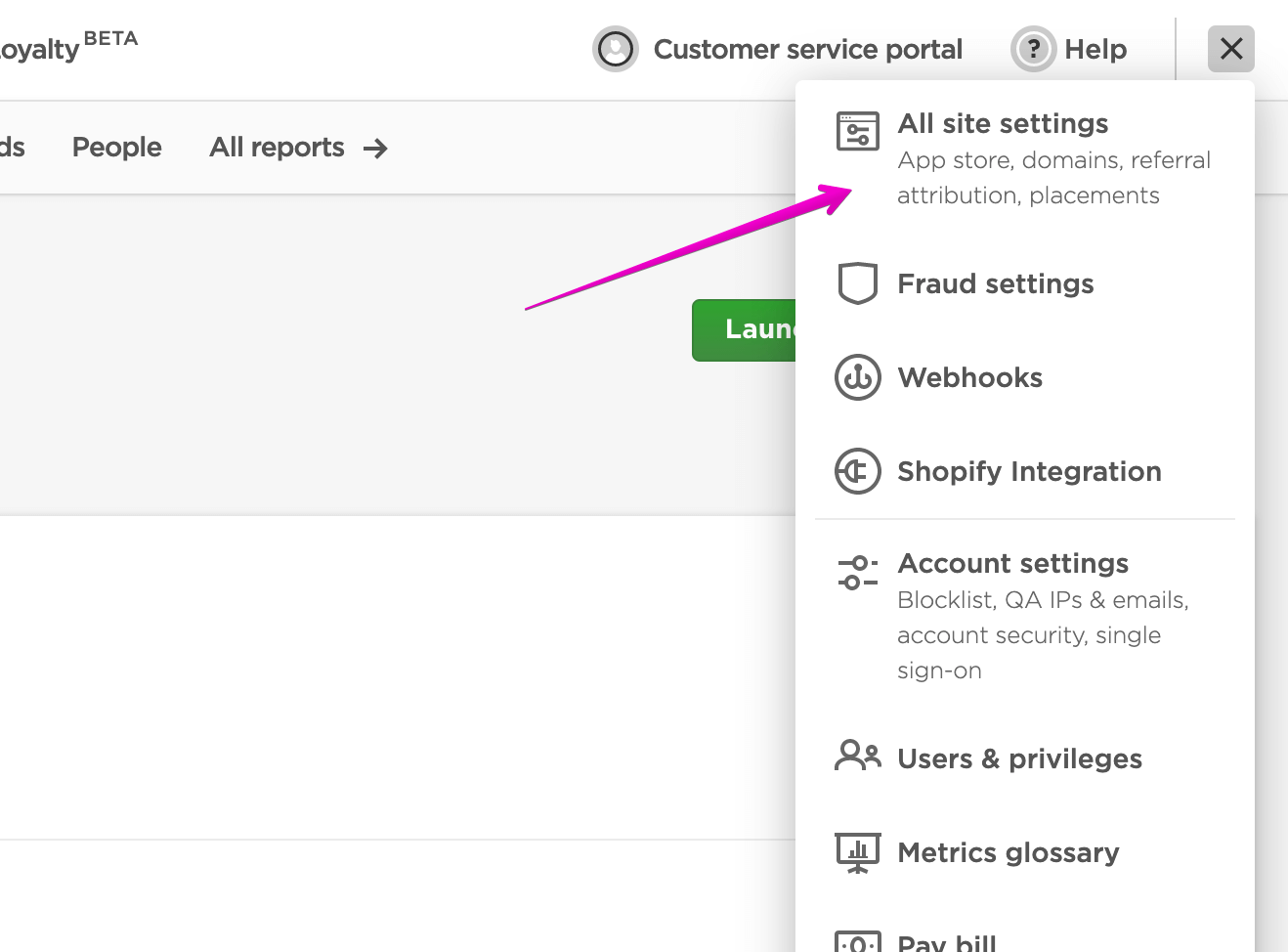
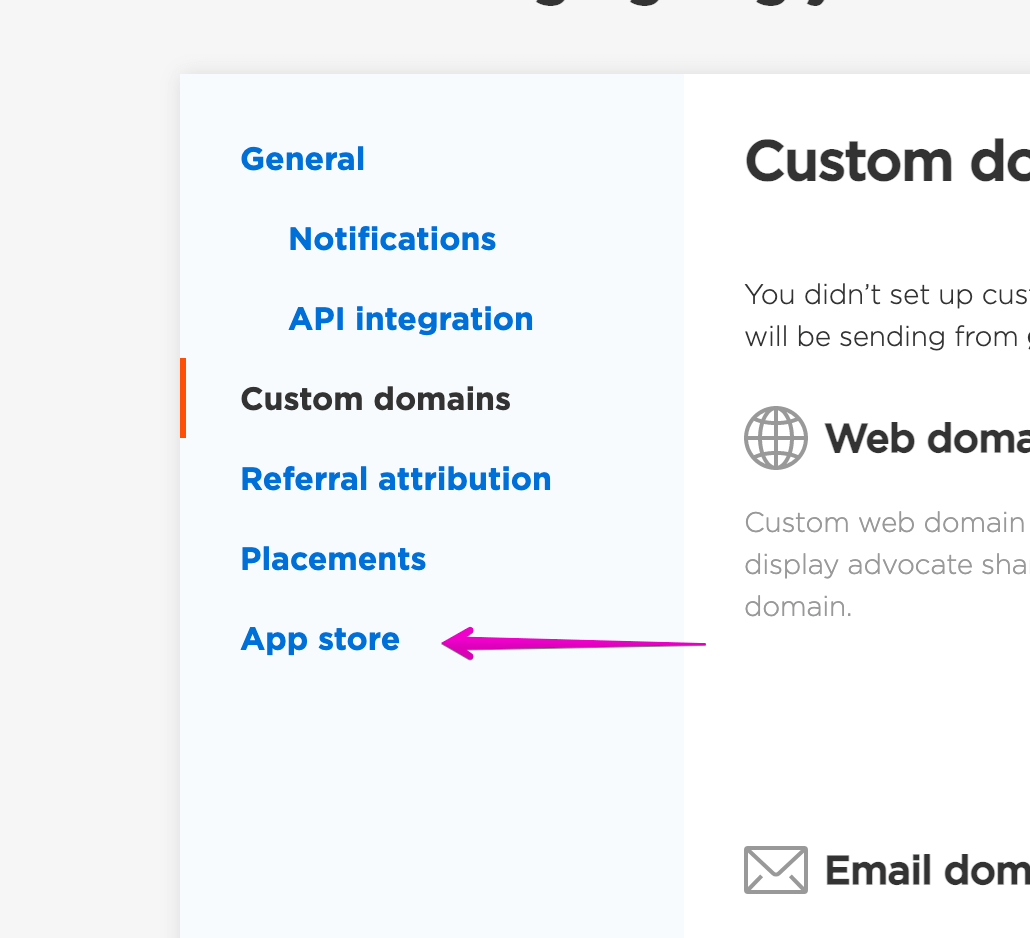
Sign in to Attentive and switch to the account you want to connect before clicking Install on Attentive under Apps available in Talkable. Attentive authorizes the currently active account. Check its name on the authorization screen before approving. If you switch accounts during authorization, restart installation from Talkable.
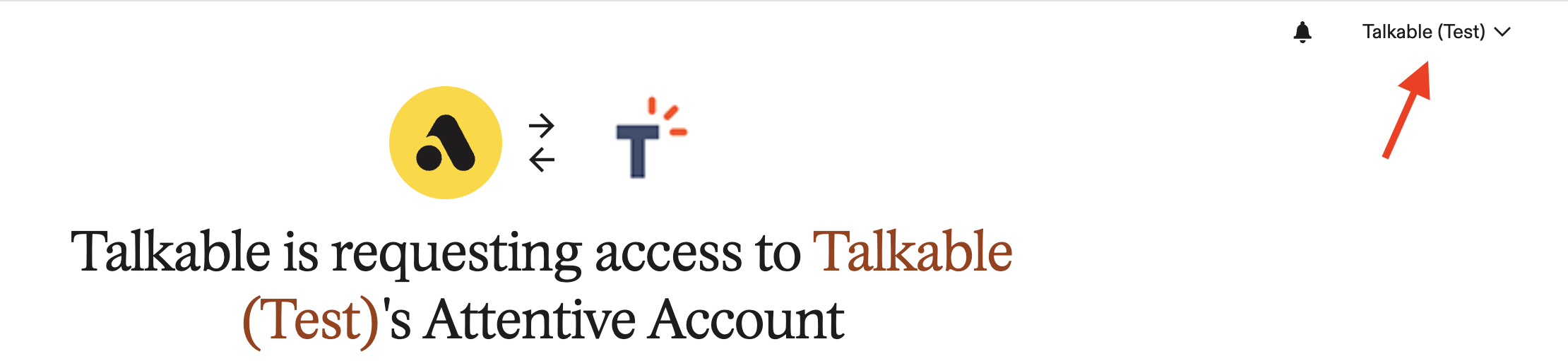
Approve access in Attentive. Back in Talkable, enter the Sign-up Source ID. The OAuth access token is set automatically.
Keep the app disabled. Turn on the actions you need to reveal their settings. If this site connects to multiple accounts, add routing rules. Click Save changes before testing.
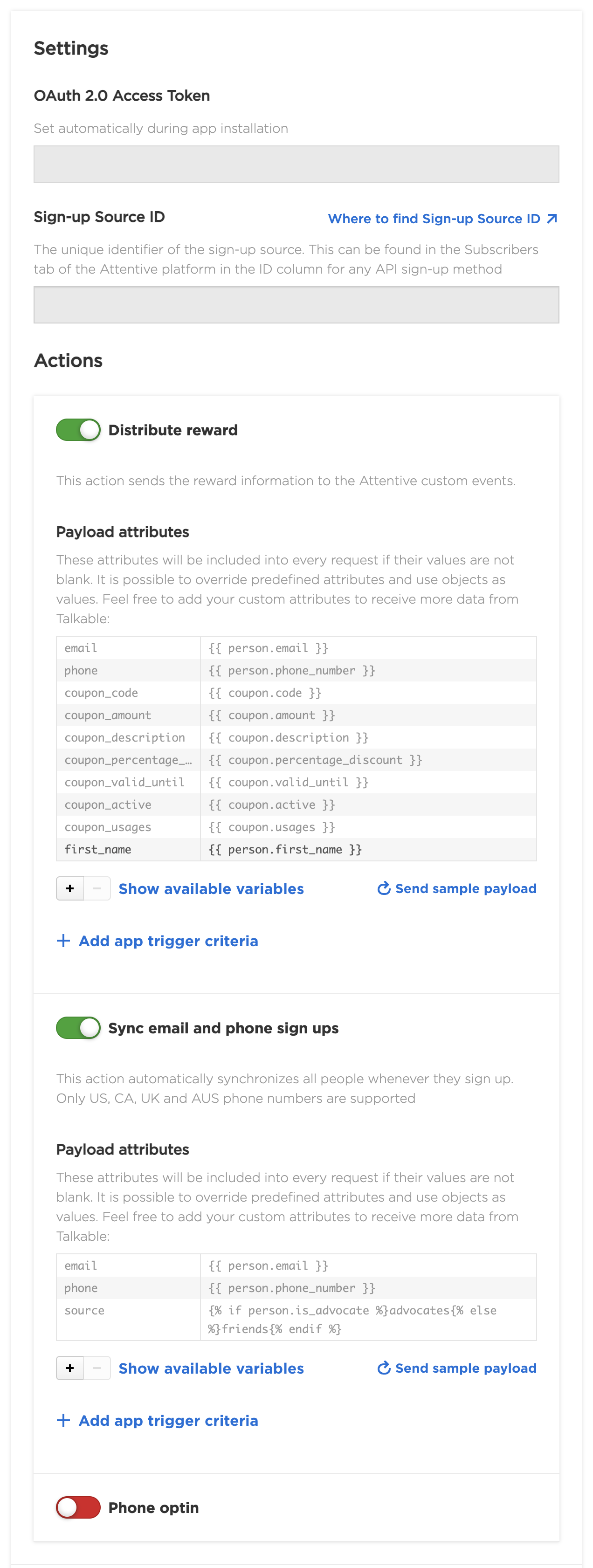
Use Send sample payload and check the connected Attentive account for the sample data.
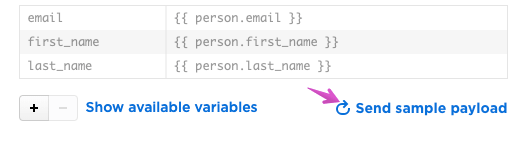
After checking the samples, enable the app to start automatic sending for its enabled actions. For multiple accounts, verify the routing with test events before enabling production connections.
A sample sends real data into the connected Attentive account while the app is disabled. The action must be enabled and its settings saved to show and use the sample button. It ignores trigger criteria, and a reward sample also skips the SMS eligibility check. Use test accounts for QA. See Testing a connection.
Connect multiple Attentive accounts#
Connect each Attentive account separately to route each region’s data to its own account. Each connection has its own credentials, settings, and actions.
Repeat Connect Attentive for each account. Switch to the intended account in Attentive before each installation and check its name on the authorization screen.
Enter a Sign-up Source ID from that account when you return to Talkable. Each connection has one Sign-up Source ID shared by its subscription actions.
Add a positive trigger criteria rule to every enabled action on each connection. Use campaign tags for separate market campaigns, or a customer property when a campaign serves multiple markets. Follow Route events to regional accounts for the complete setup and examples.
Verify routing with actual events in test accounts. A sample payload does not test the rules.
An action with an empty rule sends every eligible event of its type to its
connected account. All three Attentive actions use person as the person
variable. See Trigger criteria
for the rule format and variables.
If you need an Attentive test account, ask your Attentive Customer Success Manager to provision one.
What the app sends#
Action |
Talkable event |
Data sent to Attentive |
|---|---|---|
Sync email and phone sign ups |
A person signs up |
A marketing subscription using |
Phone optin |
A new phone opt-in |
The same subscription fields and |
Distribute reward |
A reward becomes paid, excluding loyalty points |
A Distribute Reward custom event with the recipient’s |
The default reward fields are coupon_code, coupon_amount,
coupon_description, coupon_percentage_discount, coupon_valid_until,
coupon_active, and coupon_usages. Use the Distribute Reward event as
an Attentive journey trigger to send a reward text. With the default payload,
rewards with neither a coupon code nor a coupon amount are not sent.
The subscription actions also set the custom attribute source to
advocates or friends. This attribute request identifies the person by
both email and phone when available; the opt-in check applies to the
subscription request. Extra payload fields on subscription actions are not
saved as Attentive custom attributes.
Phone numbers and opt-in#
Note
For phone and phone opt-in synchronization, corresponding attributes should be configured in a Talkable campaign: Phone number gating
Here are the conditions when Talkable acquires phone numbers:
Advocate signs up, provides phone number and opts in for Talkable marketing text messages:

Friend passes phone gating and opts in for Talkable marketing text messages:

Talkable’s Attentive subscription actions accept phone numbers beginning with
+1, +44, or +61 (United States, Canada, United Kingdom, and Australia).
If a person’s phone number has another prefix, the whole subscription action
is skipped, including the email subscription. A person without a phone number
can still be subscribed by email.
Attentive’s double opt-in remains enabled. New SMS subscribers must confirm their subscription through Attentive’s confirmation text. Configure the SMS opt-in checkbox and the required disclosure for your campaign.
The reward action waits until Attentive reports that the phone is eligible for SMS. It retries for about three days if confirmation is pending, then stops. Email-only shoppers do not receive the reward event.
If Sync email and phone sign ups and Phone optin are both enabled, a sign-up with a phone opt-in can send two subscription requests. Choose the subscription action that matches when you collect consent. See Email in one tool, SMS in another when using Attentive together with Klaviyo.
Sign-up Source ID#
The Sign-up Source ID identifies an API sign-up unit in your Attentive account. In Attentive, open Sign-up Units and find the ID column for a unit of the API type, Integration Affiliate Endpoint. The page is available at https://ui.attentivemobile.com/subscribers/sign-up-units. If you do not have the unit, ask your Attentive Customer Success Manager to create it and provide its ID.
Talkable marks this field as optional, but Attentive needs it for this integration’s subscription requests. Enter an ID from the account that approved the installation. There is one Sign-up Source ID per installation, shared by its subscription actions.
Payload attributes#
Use Payload attributes to configure the fields sent by each action and
Show available variables
to inspect its variables. Sign-up and phone
opt-in actions provide person, ip, campaign, and site_id.
The reward action also provides reward details such as coupon and
incentive. See
Payload attributes and variables.
Uninstall Attentive#
Uninstalling the app in Talkable removes the connection from the site. It does not revoke the Attentive access token. To stop automatic sending while keeping the connection, disable the app.
Contact us
Interested in setting this up? Contact your CSM or get in touch here.