
Braze#
With ESP apps clients can synchronize emails that Talkable acquires with their ESP. Here are the conditions when Talkable acquires emails:
Advocate signs up and opts in for Talkable marketing emails:
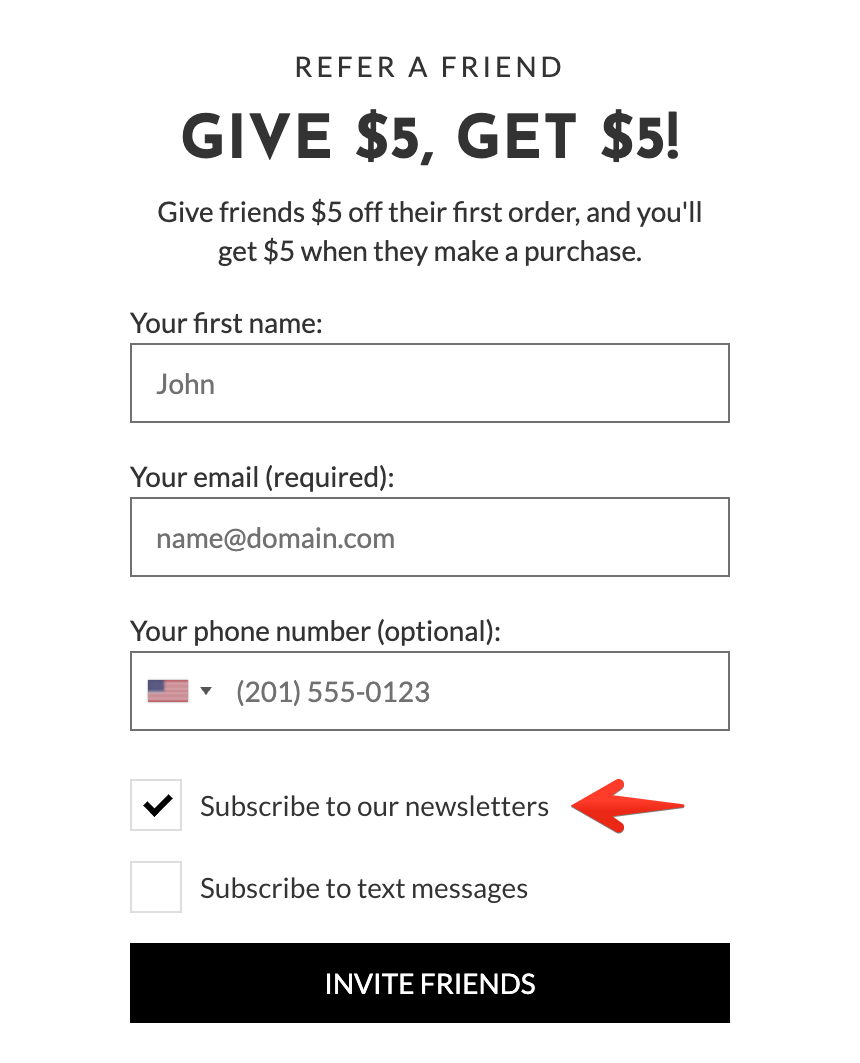
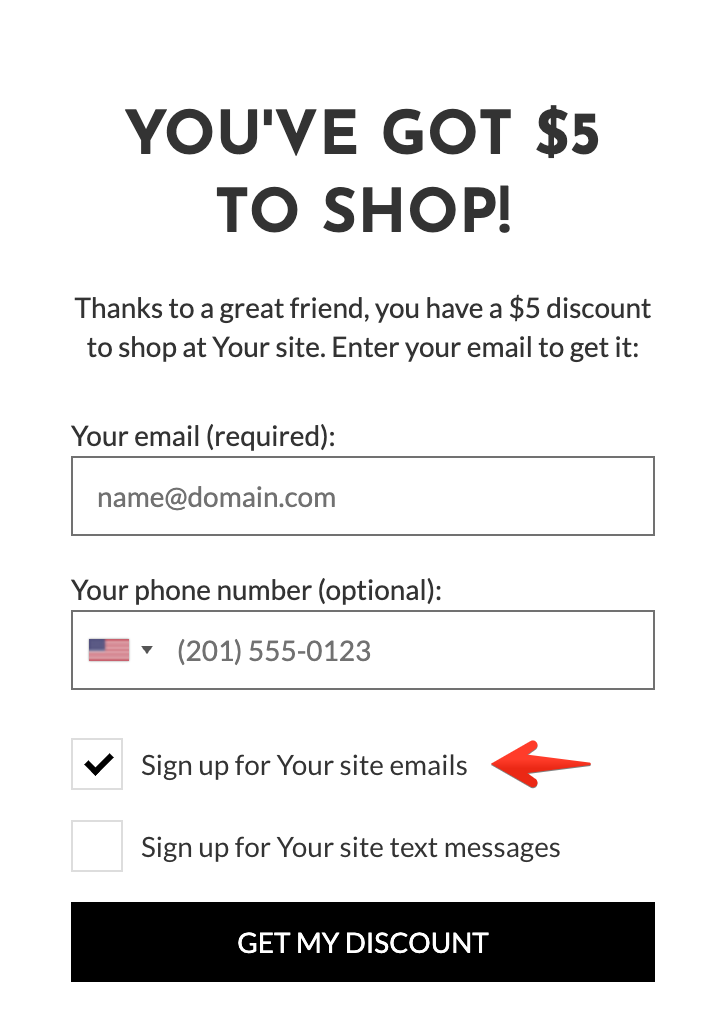
A friend passes email gating and opts in for Talkable marketing emails:
Each ESP application allows custom attributes to be included with each request. The following interpolation variables are allowed:
{{ person }}- a data object for either advocate or friend whenever they sign up or pass email gating and opt-in for marketing emails.{{ ip }}– a data object from which IP address either a signup or email gating occurred.{{ campaign }}– a data object with details about the campaign within which the email was captured.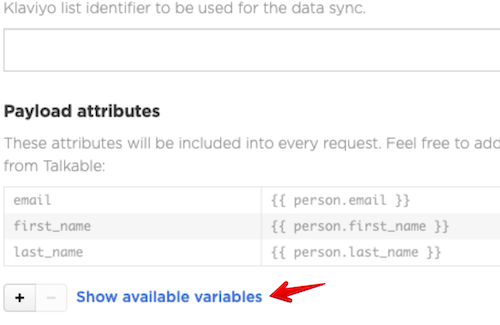
Each variable is described in the “Available variables” sidebar and can be expanded to see all nested properties.
How to add a new app?#
Please use the following guide to start using an app you need:
Navigate into the App store:
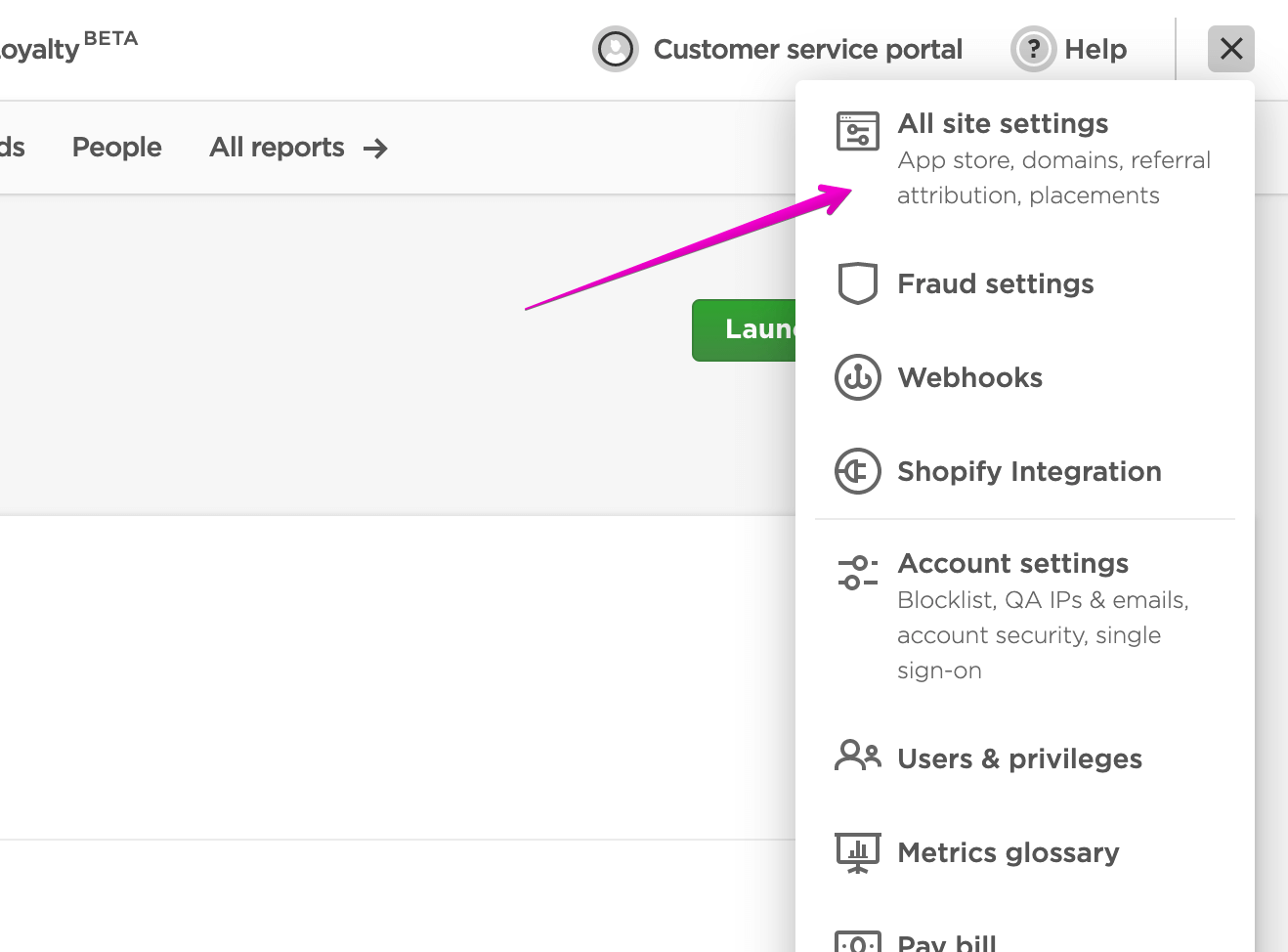
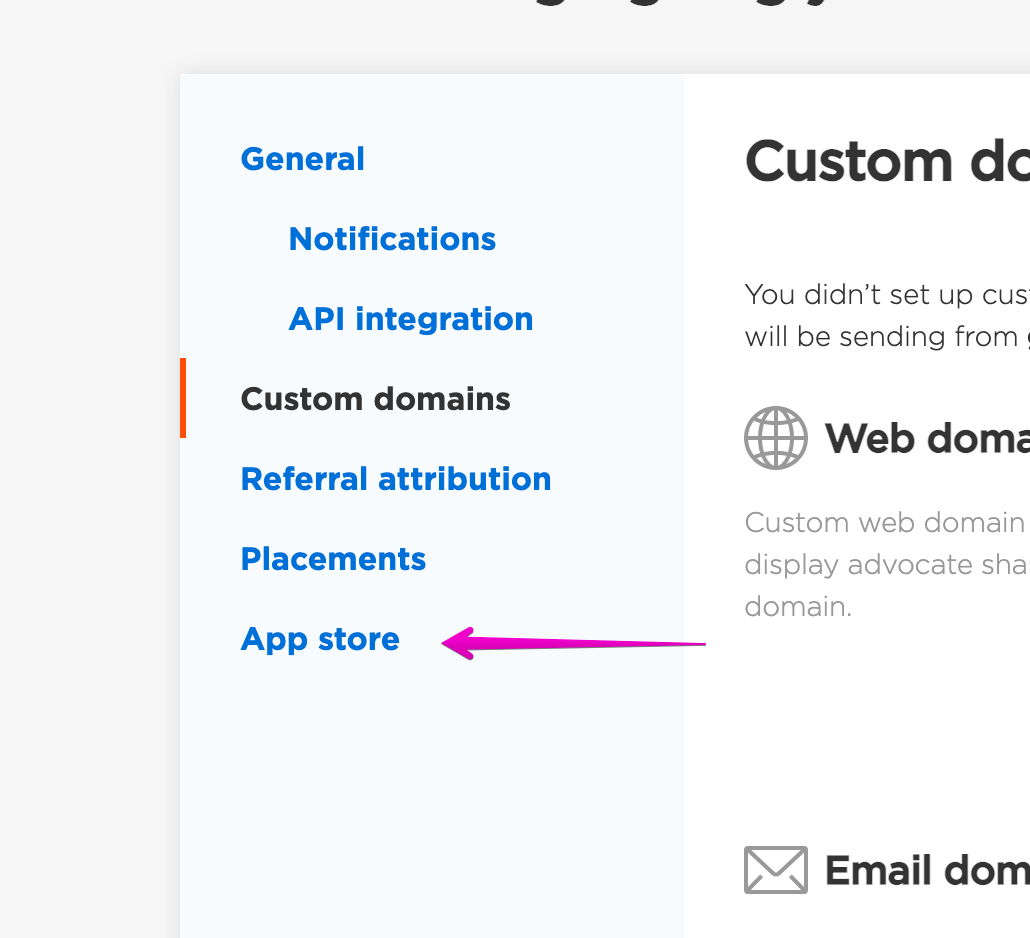
Choose an app you need by clicking “Install”.
Fill in all necessary fields using the credentials found through the instructions above.
Important
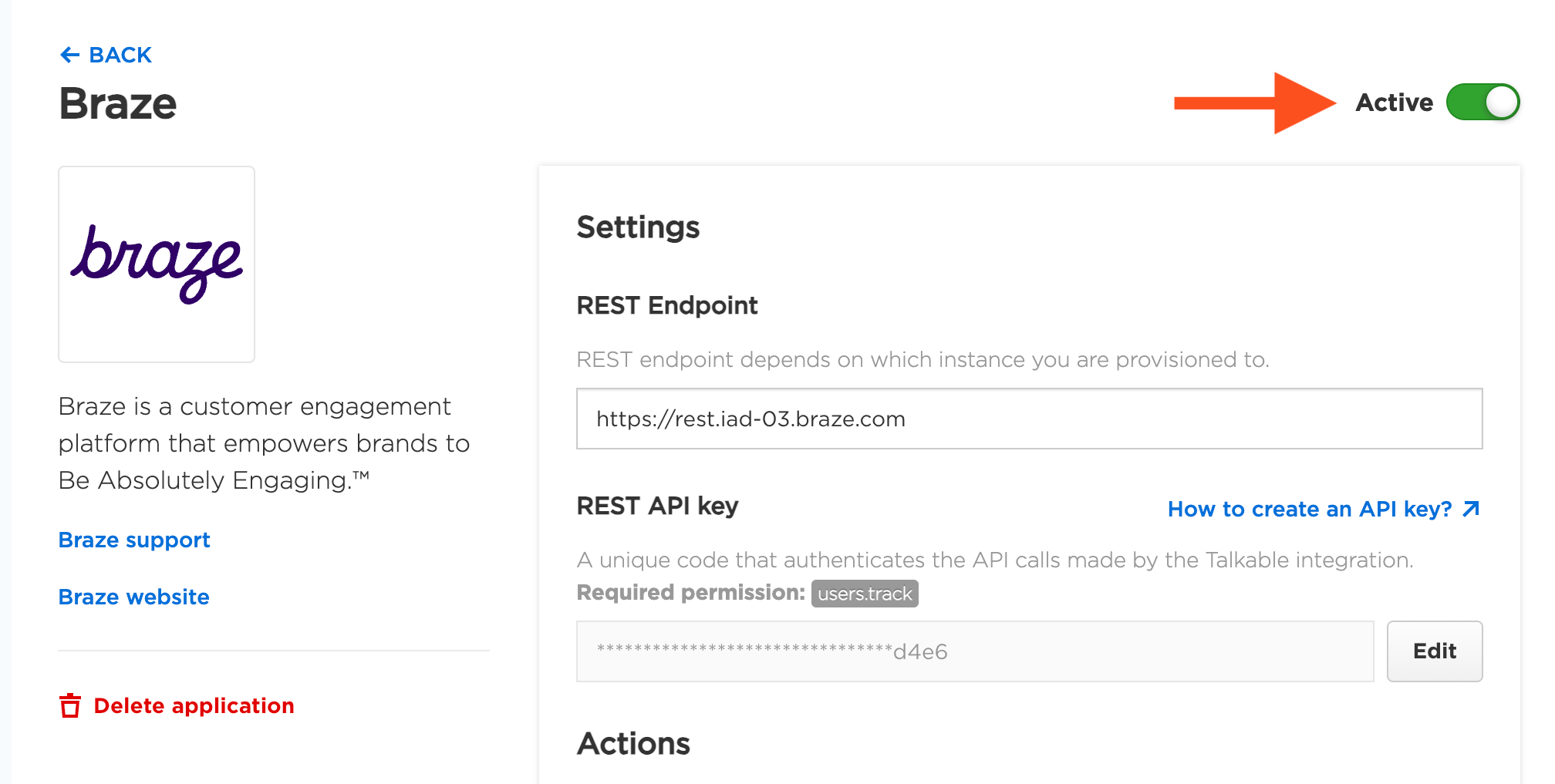
When creating or choosing an API key to use for Talkable opt-ins, make sure that the API key has the following permission:
users.trackComplete installation in Talkable and enable the app:
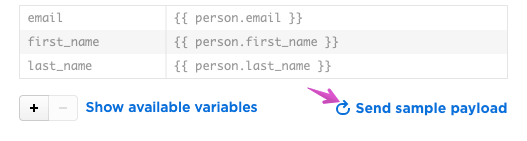
Test the app by pressing on the “Send sample payload” and then check if you are seeing a test request inside your ESP:
Subscription group identifier#
Talkable allows to specify a subscription group that the person will be added to upon email opt-in. Copy the subscription group identifier from the Braze admin at Audience → Subscription Group Management (the ID column) and paste it in Talkable in the “Subscription group identifier” field.
User aliases#
Optionally, you can provide a user alias that will be sent with other user attributes after the opt-in. To add an alias, modify the action payload in Talkable to include the following fields:
user_alias.alias_nameuser_alias.alias_label
Any other payload additions will be sent as user attributes.
Contact us
Interested in setting this up? Contact your CSM or get in touch here.