
Salesforce Marketing Cloud#
Overview#
This integration enables the sync of friends’ and advocates’ email opt-ins from Talkable to Salesforce Marketing Cloud (SFMC). With ESP apps clients can synchronize emails that Talkable acquires with their ESP.
Here are the conditions when Talkable acquires emails:
Advocate signs up and opts in for Talkable marketing emails:
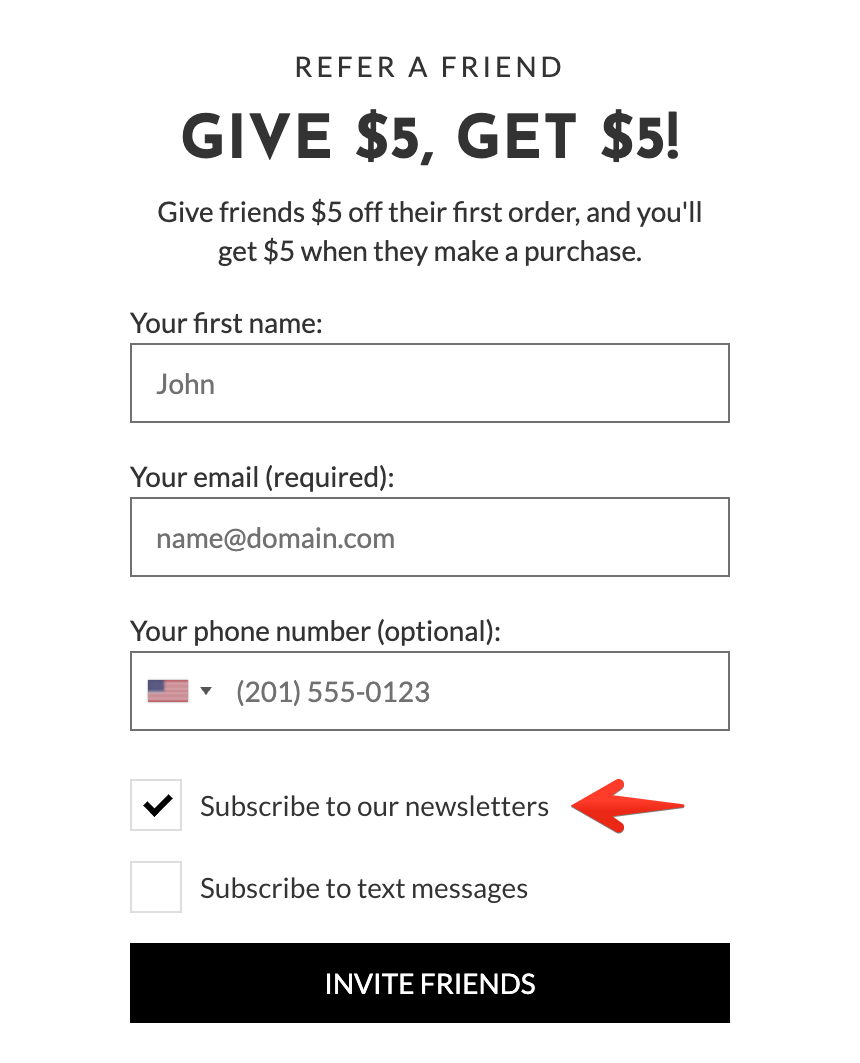
A friend passes email gating and opts in for Talkable marketing emails:
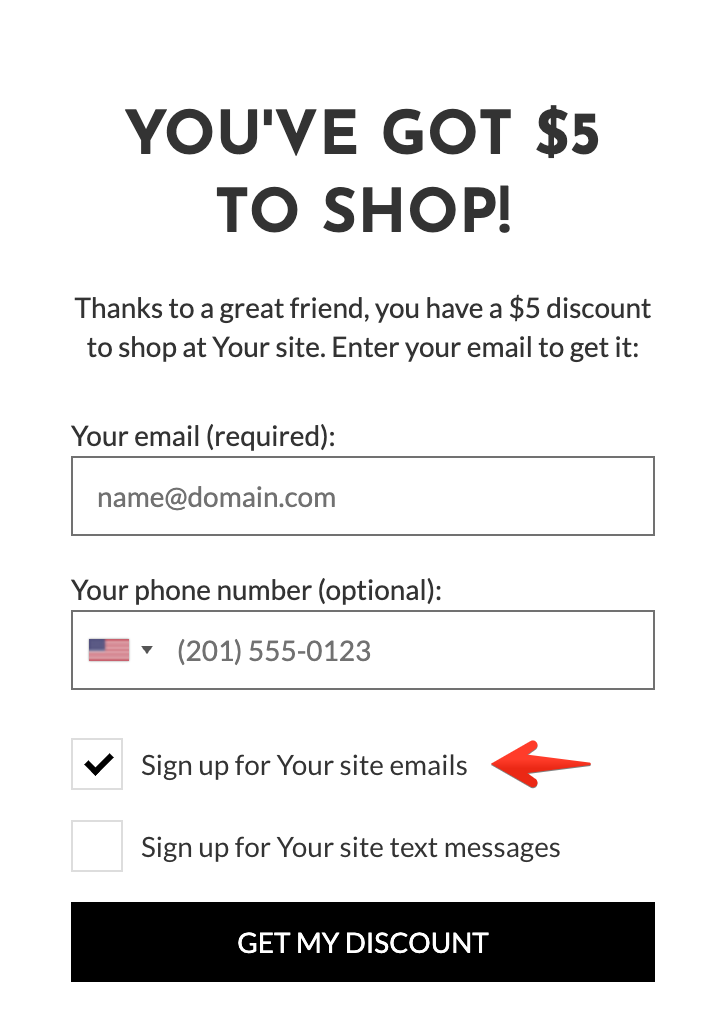
Referral Flow#
Advocate signs up in the Talkable campaign
If advocate is opted in, Talkable sends the advocate email to SFMC to subscribe to email list broadcasts. Talkable adds a field to identify this user as an advocate in SFMC.
The advocate shares an offer with a friend
Friend follows the share link, signs up in the Talkable campaign to receive the reward
If the friend has opted in, Talkable sends friend email to SFMC to subscribe for email list broadcasts, and adds field to identify this user as a friend
Configuration Requirements#
To set up this integration, please provide the following information:
SOAP Endpoint URL
How to find your SOAP Endpoint URL:
Navigate to Setup → Apps → Installed Packages
Select your integration package you created for API access
In the package, under API Integration component details, you will see your authentication endpoint or base URL
For more information about SOAP endpoints, visit: Salesforce Developer Documentation
Username and Password
How to find Username and Password:
When setting up the user, select API User
For accounts with role-based permissions, select the Role → Email → Admin → API Access → WebServices API permission
For accounts with legacy permissions, select the Grant the user access to the web services permission
Enable the username and password security setting by going to Setup → Security → Security Settings and find the setting under Username and Logins
List ID
Talkable will push email opt-ins to the specified list. Our recommendation is to add these consumers to a new list or an existing warm-up or welcome list.
How to find List ID:
Navigate to SFMC admin, go to Email Studio → Subscribers → Publication Lists
Open the list (alternatively create a list for referral contacts)
Customer Key (Optional)
If you use Data Extension object for SFMC integration, you will need to provide Customer Key. This is user-supplied unique identifier for an object within an object type. This property corresponds to the external key assigned to an object.
Available Data Fields#
Each ESP application allows custom attributes to be included with each request. The following interpolation variables are allowed:
{{ person }}- a data object for either advocate or friend whenever they sign up or pass email gating and opt-in for marketing emails{{ ip }}- a data object from which IP address either a signup or email gating occurred{{ campaign }}- a data object with details about the campaign within which the email was captured
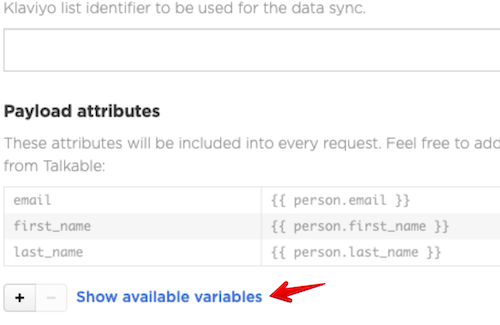
Each variable is described in the “Available variables” sidebar and can be expanded to see all nested properties.
How to Set Up#
Please use the following guide to start using the SFMC app:
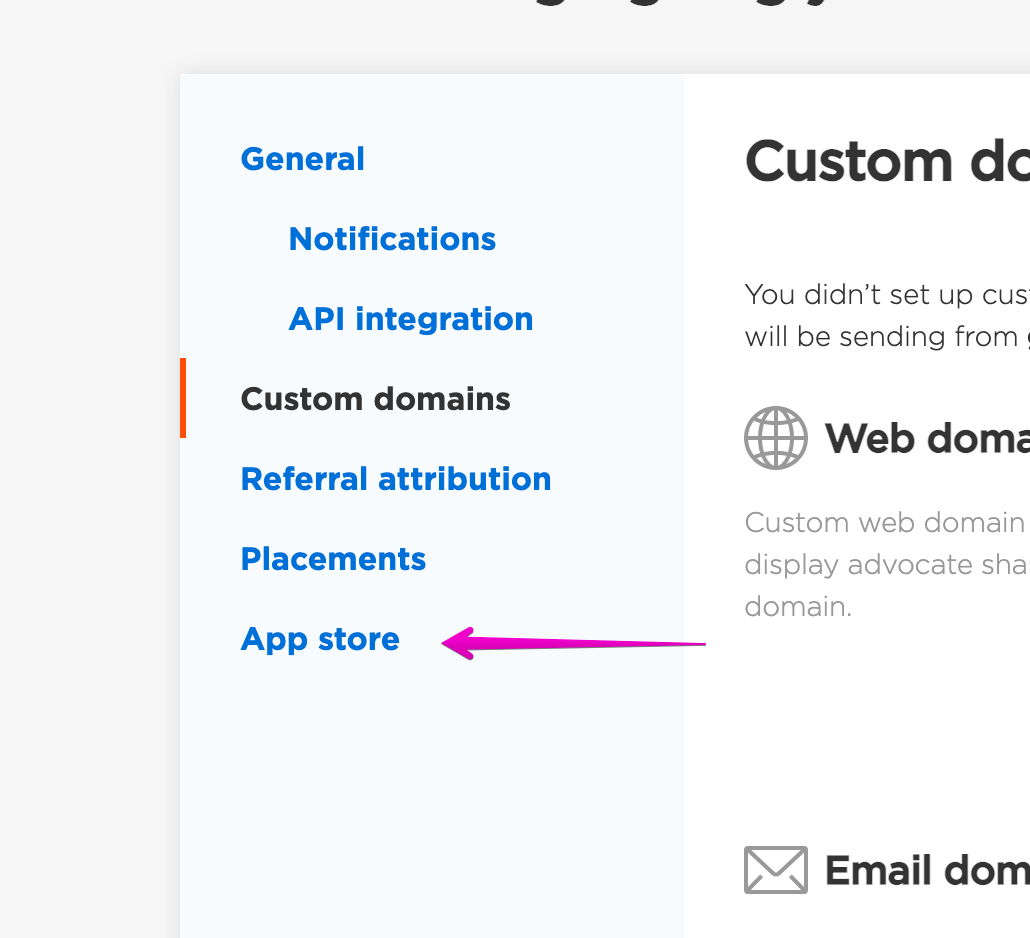
Navigate into the App store:
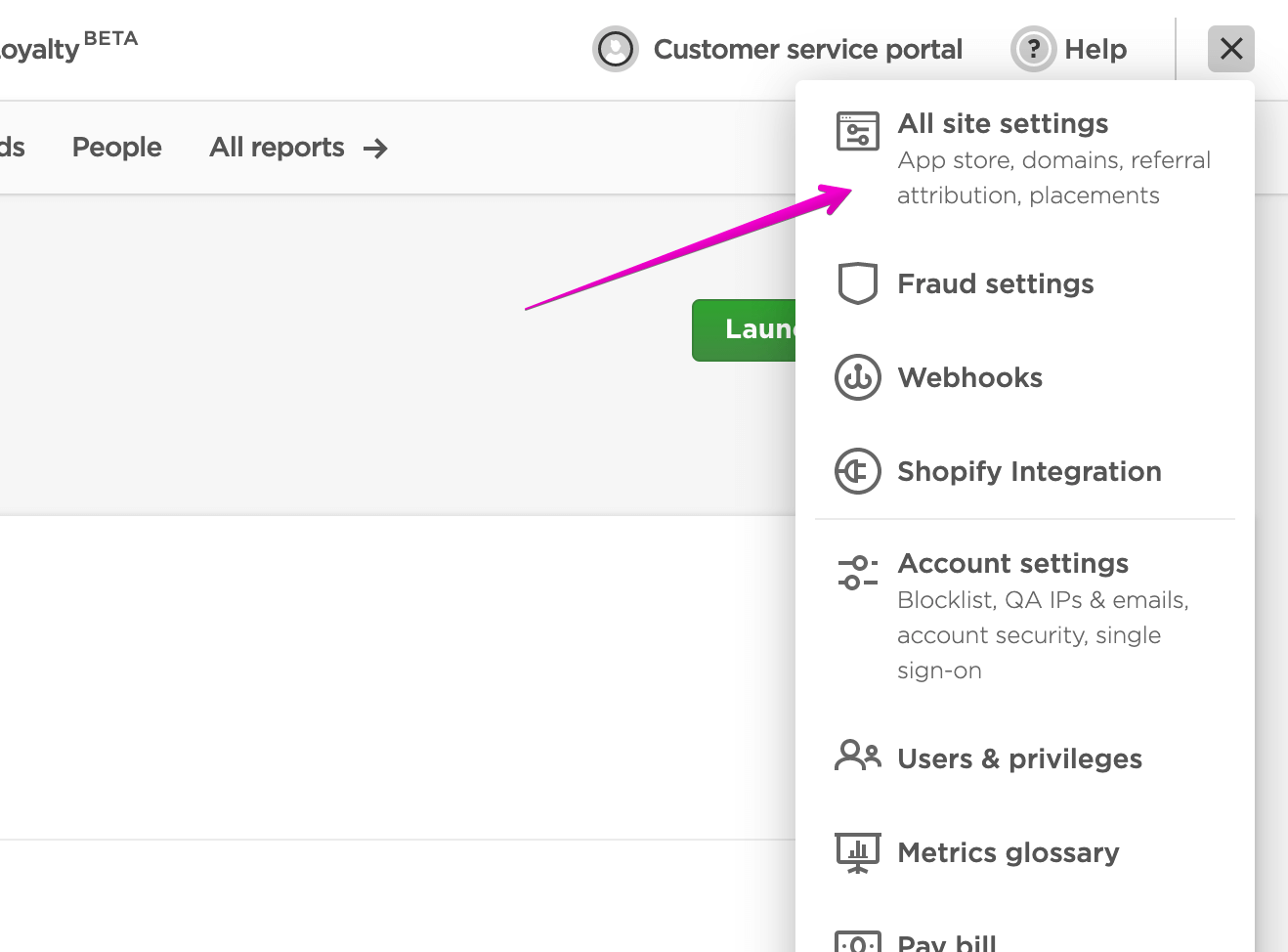
Choose the Salesforce Marketing Cloud app and click “Install”
Fill in all necessary fields using the credentials found through the instructions above
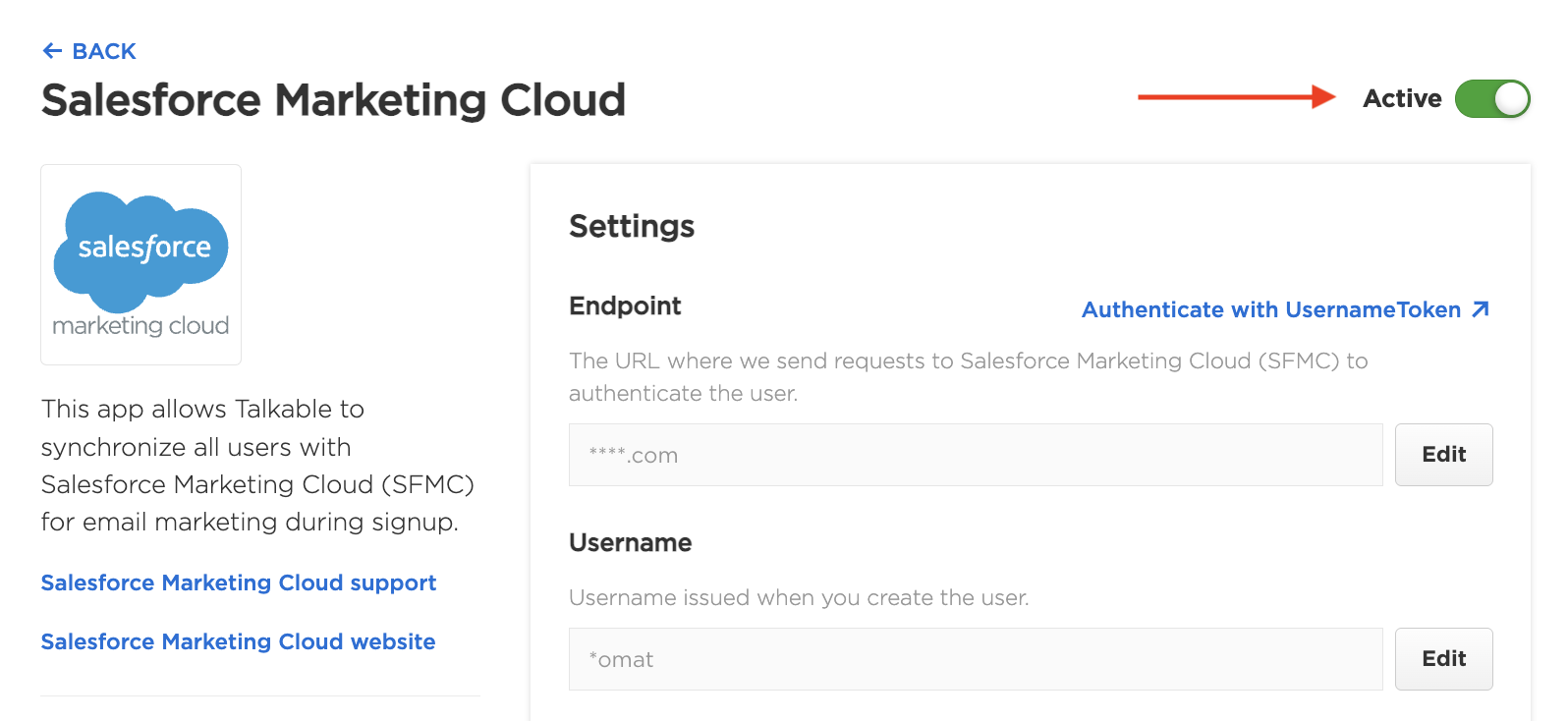
Complete installation in Talkable and enable the app:
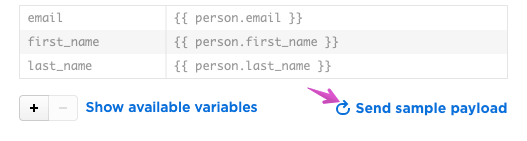
Test the app by pressing “Send sample payload” and then check if you are seeing a test request inside your SFMC:
Contact us
Interested in setting this up? Contact your CSM or get in touch here.